
How to Change DNS Server: Step-by-Step Guide for Faster and Safer Internet
TL;DR
- Changing your DNS server can noticeably speed up browsing, improve reliability, and boost privacy and security without changing your actual internet plan.
- ISP default DNS servers are often slow, overloaded, and may track or hijack your traffic for ads or content blocking.
- Popular public DNS options include Google (8.8.8.8, 8.8.4.4), Cloudflare (1.1.1.1, 1.0.0.1), and OpenDNS (208.67.222.222, 208.67.220.220) for speed, privacy, and content filtering.
- You can change DNS settings on Windows, macOS, Android, iOS, and routers through their network settings, usually by replacing automatic DNS with custom IP addresses.
- For website owners, DNS changes at registrars and hosting control panels control where domains point, and propagation can take 1–48 hours globally.
- Skynet Hosting uses globally distributed DNS and optimized infrastructure to deliver faster resolution, higher uptime, and better overall performance for hosted websites.
Have you ever sat in front of your computer, watching a loading circle spin for what feels like an eternity? It’s frustrating, right? You pay for high-speed internet, yet your favorite websites still crawl, or worse, you get those annoying connection error messages.
Here’s a little secret that internet service providers (ISPs) don’t usually tell you: the problem might not be your speed. It might be your map.
Imagine trying to find a new restaurant without a GPS, just using an old, tattered paper map. That’s essentially what your ISP’s default Domain Name System (DNS) is doing. It translates website names (like google.com) into computer-friendly IP addresses. But if that translator is slow, outdated, or unreliable, your entire internet experience suffers.
I’ve been working in IT and network administration for over a decade, and changing DNS settings is one of the first troubleshooting steps I take when a network feels sluggish or “off.” It’s a simple tweak that takes five minutes but can drastically improve speed, reliability, and even security.
In this guide, I’m going to walk you through exactly how to change your DNS server on Windows, Mac, Android, iOS, and even your router. No jargon, no confusion—just clear steps to get your internet running the way it should.
What Is a DNS Server and Why Would You Change It?
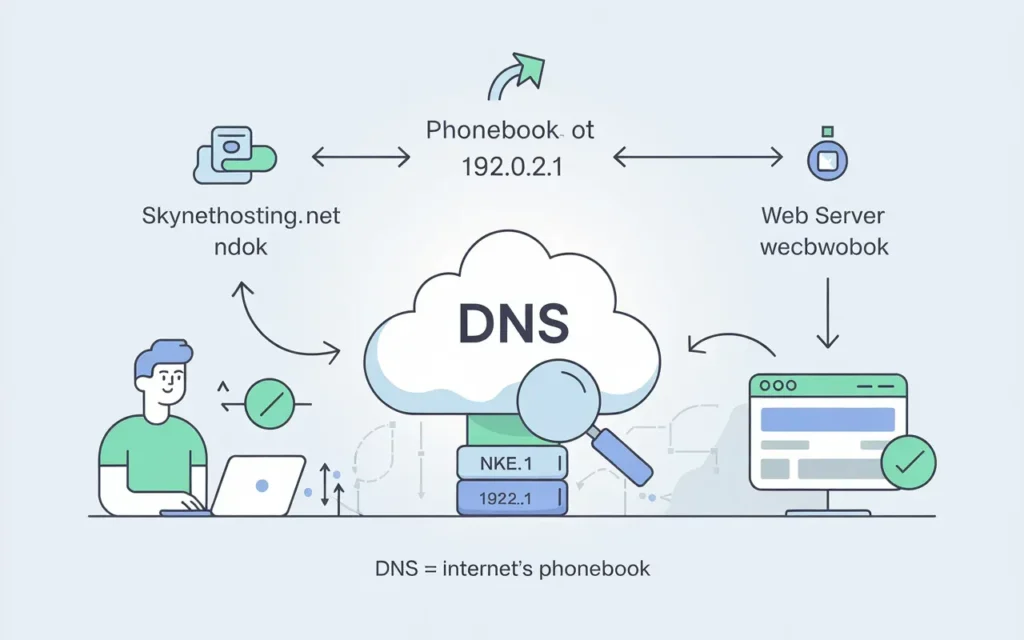
To understand why we’re doing this, we need to understand what’s happening under the hood. The Domain Name System (DNS) is often called the “phonebook of the internet.”
What DNS does behind the scenes
Computers don’t speak English; they speak numbers. When you type www.skynethosting.net into your browser, your computer doesn’t inherently know where that is. It needs an IP address (like 192.0.2.1) to locate the server hosting the website.
Your computer sends a request to a DNS server asking, “Where is skynethosting.net?” The server looks up the IP address and sends it back. This happens in milliseconds. However, if you visit hundreds of pages a day, those milliseconds add up. A slow DNS server adds a delay to every single click you make.
Common problems caused by default ISP DNS
When you sign up for internet service, your ISP automatically assigns their own DNS servers to your modem. While this is convenient, it’s rarely the best option.
ISP-managed servers are often overcrowded, leading to latency (lag). Furthermore, many ISPs use their DNS to track your browsing history to sell data to advertisers, or to block access to certain websites. If you’ve ever typed in a wrong web address and landed on a search page full of ads provided by your ISP, that’s their DNS hijacking your traffic.
Benefits of using custom DNS servers
Switching to a third-party public DNS server is like upgrading from a bicycle to a sports car. Here is what you gain:
- Speed: Providers like Google or Cloudflare have massive global networks, ensuring the lookup process is lightning fast.
- Reliability: Third-party providers rarely go down. If your ISP’s DNS crashes, your internet might look broken even if the connection is fine.
- Privacy: Many custom DNS providers promise not to log your browsing data.
- Security: Some services automatically block known phishing sites and malware before they even load.
When Is Changing Your DNS Server Recommended?
You don’t always need to mess with network settings. However, there are specific scenarios where I strongly advise making the switch.
Slow browsing and website loading issues
If your download speeds are high (according to speed tests) but websites still take a few seconds to “start” loading, that “wait time” is usually the DNS lookup lagging. If the initial handshake takes too long, the fastest fiber connection in the world won’t make browsing feel snappy.
DNS errors and connectivity problems
Have you ever seen the error DNS_PROBE_FINISHED_NXDOMAIN or “Server Not Found”? If this happens frequently across different websites, your current DNS server is likely timing out or failing to resolve addresses correctly.
Security, privacy, and content filtering needs
For parents or business owners, changing DNS is a great way to filter the web without expensive software. Services like OpenDNS Family Shield can block adult content across your entire house simply by changing the DNS settings on your router. Similarly, if you don’t want your ISP tracking every move you make, switching to a private DNS is a necessary first step.
Which Public DNS Servers Are Best to Use?
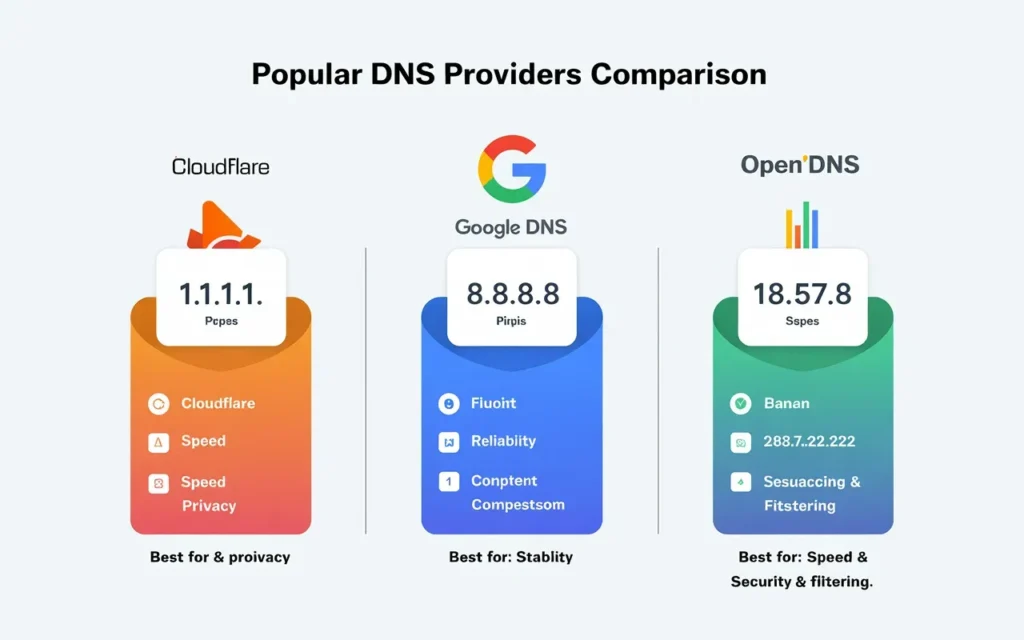
There are dozens of options, but I recommend sticking to the big, trusted players for the best results.
Google DNS vs Cloudflare DNS
These are the two titans of the industry.
- Google Public DNS:
- Primary:
8.8.8.8 - Secondary:
8.8.4.4 - Verdict: Extremely reliable and fast. Great for general use.
- Primary:
- Cloudflare DNS:
- Primary:
1.1.1.1 - Secondary:
1.0.0.1 - Verdict: Often benchmarks as the fastest DNS in the world. They also have a strong stance on privacy, deleting logs after 24 hours.
- Primary:
OpenDNS and privacy-focused DNS options
If you want more control, OpenDNS (owned by Cisco) is a fantastic choice.
- OpenDNS Home:
- Primary:
208.67.222.222 - Secondary:
208.67.220.220 - Verdict: Excellent for security and blocking malicious sites.
- Primary:
Choosing the right DNS based on your needs
If you are a gamer or streamer wanting raw speed, go with Cloudflare (1.1.1.1). If you are troubleshooting connectivity and want the most stable option possible, Google (8.8.8.8) is your best bet. If you want to prevent your kids from stumbling onto bad sites, set up OpenDNS.
How Can You Change DNS Server on Windows?
Let’s get into the “how-to.” Whether you are on Windows 10 or 11, the process is very similar.
DNS change via Network Settings
- Open the Start Menu and type “Network status,” then press Enter.
- Click on Change adapter options (or “Advanced network settings” in Windows 11).
- Right-click on your active connection (usually Wi-Fi or Ethernet) and select Properties.
- Find Internet Protocol Version 4 (TCP/IPv4) in the list. Highlight it and click Properties.
- Select the radio button that says Use the following DNS server addresses.
- Enter your preferred DNS (e.g.,
1.1.1.1top and1.0.0.1bottom). - Click OK and close the windows.
DNS change using Control Panel
Some users prefer the old-school Control Panel method:
- Open Control Panel > Network and Internet > Network and Sharing Center.
- Click on your connection name (blue text) next to “Connections.”
- Click Properties and follow the same steps as above (selecting TCP/IPv4).
Verifying DNS changes on Windows
To make sure it worked:
- Open Command Prompt (search
cmdin Start). - Type
ipconfig /alland hit Enter. - Look for “DNS Servers” under your adapter. You should see the numbers you just typed in.
How Can You Change DNS Server on macOS?
Mac users, the process is just as straightforward.
Changing DNS via System Settings
- Click the Apple icon in the top left corner and select System Settings (or System Preferences).
- Click Network.
- Select your active network (Wi-Fi or Ethernet) and click Details or Advanced.
- Navigate to the DNS tab.
Adding multiple DNS servers
You might see grayed-out IP addresses here—those are the default ones from your router.
- Click the + (plus) button at the bottom of the list.
- Type in your primary address (e.g.,
8.8.8.8) and press Enter. - Click + again and add the secondary address (e.g.,
8.8.4.4). - Drag your new addresses to the top of the list to prioritize them.
- Click OK and then Apply.
Testing DNS configuration on macOS
Open your Terminal app (Command + Space, type “Terminal”). Type nslookup google.com. The “Server” address listed in the result should match the DNS you just configured.
How Can You Change DNS Server on Android Devices?
Android allows you to change DNS easily for Wi-Fi, but mobile data settings are usually locked by your carrier unless you use a specific “Private DNS” feature.
Changing DNS for Wi-Fi networks
- Go to Settings > Network & Internet > Wi-Fi.
- Tap the gear icon next to your connected network.
- Tap the Pencil icon (Modify) or “Advanced.”
- Change IP settings from “DHCP” to Static.
- Scroll down to the DNS 1 and DNS 2 fields.
- Enter your custom IPs and save.
Note: Changing to “Static” requires you to manually set your IP address too, which can be tricky. Using the “Private DNS” feature below is usually easier.
Using Private DNS on Android
Starting with Android 9 (Pie), there is a global setting for this:
- Go to Settings > Network & Internet > Private DNS.
- Select Private DNS provider hostname.
- Enter the hostname (not the IP numbers).
- For Google:
dns.google - For Cloudflare:
1dot1dot1dot1.cloudflare-dns.com
- For Google:
- Tap Save. This applies to both Wi-Fi and mobile data!
Common Android DNS issues
If your internet cuts out after changing these settings, you may have a typo in the hostname. Double-check the spelling. Also, some public Wi-Fi networks (like in airports) block custom DNS usage to force you to view their login page. If you can’t connect to public Wi-Fi, turn Private DNS to “Automatic” temporarily.
How Can You Change DNS Server on iPhone and iPad?
iOS devices treat DNS strictly on a per-network basis for Wi-Fi.
DNS changes on Wi-Fi networks
- Open Settings > Wi-Fi.
- Tap the blue “i” icon next to your connected network.
- Scroll down and tap Configure DNS.
- Change it from Automatic to Manual.
- Tap the red minus sign to remove existing servers.
- Tap Add Server and type your new IP addresses.
- Tap Save.
Automatic vs manual DNS settings
By default, “Automatic” pulls settings from your router. “Manual” overrides them. Just remember, this only applies to that specific Wi-Fi network. If you go to a friend’s house, you will use their default settings unless you configure it there too.
Resetting DNS if internet stops working
If you mess up the numbers, don’t panic. Just go back to Configure DNS and switch it back to Automatic. Your phone will immediately re-fetch the correct settings from the router.
How Can You Change DNS Server on a Router?
This is the “master key.” If you change the DNS on your router, every device in your house—phones, laptops, smart TVs, gaming consoles—will automatically use the faster DNS.
Why changing DNS at router level matters
It saves time. You don’t have to configure ten different devices. Plus, it covers devices that don’t have DNS settings, like smart light bulbs or older smart TVs, potentially improving their connectivity.
Router DNS setup (general steps)
Every router is different, but the logic is the same:
- Find your router’s IP address (usually written on a sticker on the device, often
192.168.0.1or192.168.1.1). - Type that IP into your web browser and log in.
- Look for a section named WAN, Internet, or Basic Settings.
- Find the DNS Settings fields.
- Enter your primary and secondary DNS addresses.
- Click Save or Apply. Your router will likely reboot.
ISP router limitations and workarounds
Some ISPs lock their provided modems so you cannot change the DNS settings. If you can’t find the option, you are likely stuck. The workaround is to buy your own high-quality router and plug it into the ISP modem, or configure the DNS on each device individually.
How Can You Change DNS Server for a Website or Domain?
Changing DNS on a computer helps you browse faster. Changing DNS for a domain (like yourbusiness.com) controls where the world finds your website. This is vital for website owners.
DNS change at domain registrar
If you bought a domain from a registrar (like Namecheap or GoDaddy), you log into their dashboard to point the “Nameservers” to your hosting provider.
- Log in to your registrar.
- Select your domain.
- Find Nameservers.
- Select Custom DNS.
- Enter the nameservers provided by your host (e.g.,
ns1.skynethosting.net,ns2.skynethosting.net).
DNS change at hosting provider
Once the domain points to your host, you manage specific records (A Records, MX Records for email) inside your hosting control panel, like cPanel. This is where you tell the domain exactly which server IP holds your website files.
Understanding DNS propagation time
When you change domain DNS, it doesn’t happen instantly. It takes time for the new “map” to update across the world. This is called DNS propagation. It can take anywhere from 1 hour to 48 hours. If your site doesn’t load immediately after a switch, be patient.
How Can You Check If DNS Changes Are Working?
You’ve typed in the numbers, but how do you know it’s actually doing anything?
Using command line tools
On Windows, use Command Prompt and type nslookup google.com. If the “Server” or “Address” matches the DNS you set (like 8.8.8.8), you are golden.
Online DNS checking tools
Websites like dnsleaktest.com are fantastic. Run the “Standard Test.” If the results show Google or Cloudflare as the ISP owner of the DNS, you successfully made the switch. If it still shows your home internet provider (e.g., Comcast, AT&T), the settings didn’t save, or your browser is overriding them.
Clearing DNS cache properly
Sometimes your computer remembers the old settings. To force a refresh:
- Windows: Open Command Prompt and type
ipconfig /flushdns. - Mac: Open Terminal and type
sudo dscacheutil -flushcache; sudo killall -HUP mDNSResponder.
What Problems Can Occur After Changing DNS Servers?
While usually safe, things can go wrong.
DNS not resolving
If you type the IP address incorrectly (even one digit off), the internet will break. You won’t be able to load any webpage. Double-check your numbers.
Email or website access issues
Some workplace networks require you to use their internal DNS to access private servers or intranet sites. If you switch to Google DNS while at work, you might lose access to the office printer or internal file shares.
How to safely roll back DNS changes
The beauty of this process is that it is reversible. If anything acts weird, just go back to the settings menu on your device and switch back to “Obtain DNS server address automatically” (Windows) or “Automatic” (Mac/iOS).
How Does DNS Choice Affect Hosting and Website Performance?
If you are running a business or hosting a website, DNS is critical infrastructure.
DNS speed and website loading
Just like your computer needs a fast DNS to browse, your website needs a fast DNS provider so customers can find you. If your hosting provider has slow nameservers, your site will feel sluggish to new visitors, hurting your SEO rankings.
DNS reliability and uptime
Cheap hosting often comes with cheap DNS. If their nameserver goes down (which happens during DDoS attacks), your website vanishes from the internet until they fix it.
Why hosting-grade DNS matters
Premium hosting isn’t just about disk space; it’s about network quality. High-quality hosts invest in redundant DNS clusters so that if one server fails, another takes over instantly.
Why Skynethosting.net DNS Infrastructure Makes a Difference
At Skynet Hosting, we understand that milliseconds matter. That’s why we don’t just offer space on a server; we offer a robust connectivity ecosystem.
Globally distributed DNS servers
We operate 25 worldwide locations. When you host with us, your DNS lookups are handled by a global network. This means a customer in London gets a fast response from a local server, rather than waiting for a signal to travel all the way from New York.
Faster resolution and higher uptime
Our infrastructure is built on NVMe storage and LiteSpeed servers, which are significantly faster than traditional setups. This speed extends to our DNS resolution, ensuring your visitors get to your content immediately.
Reliable DNS for business and VPS hosting
Whether you are on our cheap budget reseller plans or running a high-powered VPS, you get access to our 24/7 monitored network. We handle the technical heavy lifting—spam filtering, DDoS protection, and DNS management—so you can focus on growing your business.
Conclusion
DNS changes made simple and safe
Changing your DNS server is one of the highest-return “tech hacks” you can do. It costs nothing, takes minutes, and can instantly make your browsing snappier and more secure. Whether you stick with Google for stability or Cloudflare for speed, you are now in control of your internet roadmap.
Choosing the right DNS for long-term performance
Don’t settle for the default. Just as you’d choose the best hosting provider for your website, you should choose the best navigation system for your browsing. And if you are looking for a hosting partner that takes speed and infrastructure seriously, Skynet Hosting is here to help you get started in minutes.
FAQs
What is a DNS server and why should I change it?
A DNS server translates website names into IP addresses so your device can find the correct server. Changing it can reduce website loading delays, improve reliability, enhance privacy by avoiding ISP tracking, and add security features like blocking phishing or malicious sites.
When is it a good idea to change my DNS server?
Consider changing DNS when browsing feels slow despite good speed-test results, you frequently see DNS-related errors, or you want better privacy, security, or content filtering. It’s also useful for parents and businesses needing simple network-wide filtering without extra software or complex setups.
Which public DNS servers are best for speed and privacy?
Cloudflare (1.1.1.1, 1.0.0.1) is often fastest and privacy-focused, deleting logs quickly. Google DNS (8.8.8.8, 8.8.4.4) is extremely reliable and widely supported. OpenDNS (208.67.222.222, 208.67.220.220) is strong for security, web filtering, and protecting families or small businesses.
How do I change DNS on my computer or phone?
On Windows and macOS, open network settings, edit your active connection, choose manual or custom DNS, then enter your preferred DNS IPs and save. On Android and iOS, adjust Wi‑Fi DNS or Private DNS/Configure DNS to override the default servers with your chosen ones.
Why should I change DNS on my router instead of each device?
Changing DNS on the router applies to every connected device automatically, including phones, laptops, TVs, and smart gadgets. It saves time, ensures consistent filtering and privacy, and helps even devices without DNS options benefit from faster lookups and improved reliability.
How do DNS changes affect my website and hosting performance?
For website owners, DNS controls how quickly visitors can find your site. Fast, reliable DNS reduces initial lookup delays and improves uptime, especially during attacks or outages. Using robust, globally distributed DNS infrastructure, like that offered by Skynet Hosting, helps keep sites responsive and accessible.
