
How to Avoid Billing Errors in WHMCS: A Complete Prevention Guide
TL;DR
- Prevent duplicate invoices by running cron jobs every 5 minutes only once; avoid manual generation during automation.
- Set recurring billing cycles correctly in product pricing to avoid undercharging on renewals or add-ons forever.
- Align invoice generation (14 days early) with client payment methods like checks to prevent premature suspensions.
- Match payment gateway currencies/API keys exactly; use sandbox testing to catch mismatches before live charges.
- Configure taxes regionally, not globally, and choose tax-inclusive/exclusive consistently to dodge VAT errors.
- Review daily activity logs, aging invoices reports; limit staff roles to block manual edits causing repeats.
I still remember the panic I felt early in my hosting career. It was a Tuesday morning. I woke up to an inbox full of support tickets. My automation settings had misfired, and I had accidentally sent 300 duplicate invoices to my clients.
It was a nightmare to clean up. But more importantly, it damaged the trust I had worked so hard to build.
If you run a hosting business or agency using WHMCS, billing is the heart of your operation. When it beats steadily, your cash flow is healthy. When it skips a beat, you face disputes, chargebacks, and angry customers.
WHMCS is a powerful tool, but it is complex. After spending over a decade managing WHMCS instances for hosting providers, I’ve learned that billing errors rarely happen by bad luck. They happen because of small configuration mistakes.
In this guide, I’m going to walk you through exactly how to prevent these errors. We will look at common pitfalls, how to set up your automation correctly, and how to spot issues before your clients do.
What Are the Most Common Billing Errors in WHMCS?
Before we can fix the problems, we need to know what they look like. In my experience, most support tickets regarding WHMCS billing issues fall into three specific categories.
Duplicate invoices
This is the most visible error. Your client logs in and sees two identical invoices for the same service. Or worse, their credit card gets charged twice.
This usually happens when cron jobs are running too frequently or are misconfigured. It can also happen if a manual invoice was generated by a staff member while the automation system was also doing its job.
Incorrect renewal amounts
Imagine a client signs up for a hosting plan at $10/month. A year later, the price of that plan has gone up to $12/month. However, when their renewal invoice arrives, it’s still for $10. Or, perhaps they had a one-time discount code that should have expired, but it’s still applying to their renewal.
These discrepancies bleed revenue. You might not notice it for months, and by the time you do, you have lost a significant amount of money.
Unexpected service suspensions
There is nothing that makes a client angrier than their website going offline when they have actually paid their bill.
This error often happens when payment gateways don’t “talk” to WHMCS correctly. The client pays via PayPal or Stripe, the money leaves their account, but WHMCS never gets the callback to mark the invoice as “Paid.” As a result, the automation logic thinks the account is overdue and suspends the service.
Why Do Billing Errors Happen in WHMCS?
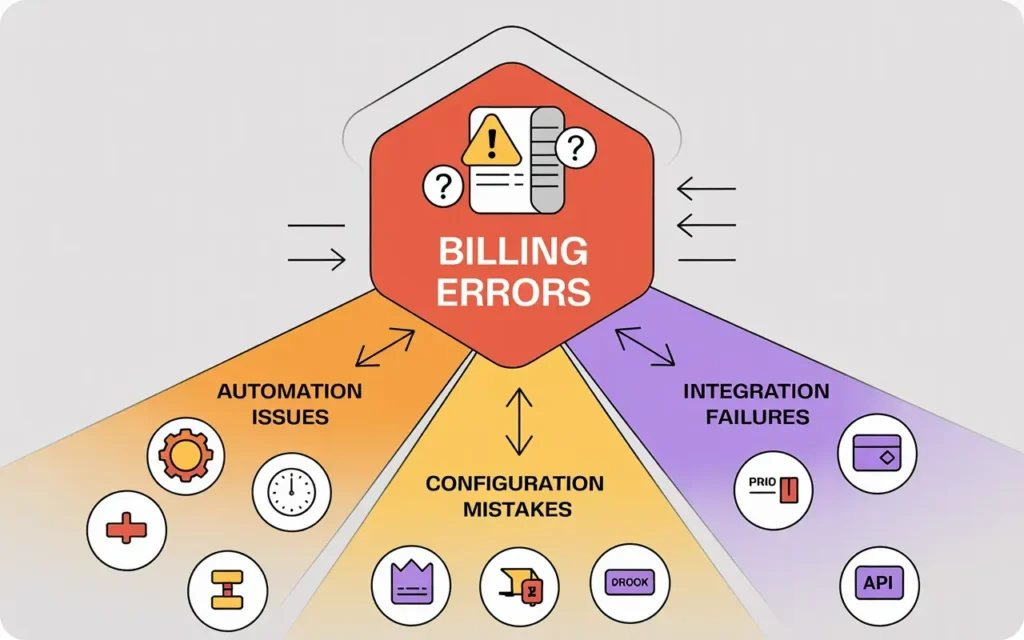
WHMCS is logic-based software. It does exactly what you tell it to do. If it makes a mistake, it’s almost always because of how it was told to handle data.
Misconfigured automation settings
The “Automation Settings” page in WHMCS is the control center of your business. If you set the “Invoice Generation” setting to 14 days, but your “Payment Capture” setting is different, you can create conflicts.
Many users simply stick with the default settings without understanding how they impact their specific business model. This mismatch is a leading cause of timing errors.
Incorrect product and pricing setup
When you add a new product, there are dozens of fields to fill out. If you select “One Time” billing instead of “Recurring” for a monthly server, the client will never get a second invoice.
Similarly, if you set up a “Configurable Option” (like extra RAM or a dedicated IP) but forget to assign a recurring price to it, the client pays for it once and then gets it for free forever.
Payment gateway mismatches
Your payment gateway and WHMCS need to be perfectly synced. If you change your API keys in Stripe but forget to update them in WHMCS, payments will fail.
Furthermore, if your gateway supports subscriptions (like PayPal Subscriptions) but your WHMCS product is set up to capture one-off payments, the system might not know how to handle the incoming money.
How Should You Configure WHMCS Products to Prevent Errors?
Prevention starts at the product level. Every time you create a new hosting plan or service, you need to double-check these three areas.
Correct billing cycles and pricing
Go to Setup > Products/Services. When you are in the “Pricing” tab, be very intentional.
Ensure that “Recurring” is selected for ongoing services. If you offer a discount for annual payments, make sure the math adds up. I often see hosts enter the monthly price in the annual field by mistake, effectively giving the client a 90% discount.
Also, check the “Auto Terminate/Fixed Term” settings. You don’t want to accidentally cancel a service because you set an end date that shouldn’t be there.
Proration and first payment amounts
Prorated billing aligns all your clients’ due dates to a specific day of the month (e.g., the 1st). This is great for cash flow, but tricky for setup.
If a client signs up on the 28th, and you have proration set to the 1st, will they be charged for two days? Or for the two days plus the next full month? You need to configure the “Prorata Date” and “Charge Next Month” settings carefully. If you don’t, you might send an invoice for $0.50, which looks unprofessional and costs more in transaction fees than it’s worth.
Setup fees and addons
Setup fees are usually one-time charges. Ensure they are entered in the “Setup Fee” column and not the “Recurring” column.
For product addons, verify that the addon billing cycle matches the parent product. If a client buys a monthly VPS but an annual backup addon, WHMCS handles this well, but only if the addon is configured to allow independent billing cycles.
How to Set Up WHMCS Automation Safely
Automation is what makes WHMCS great. It allows you to sleep while your business makes money. But it needs to be treated with respect.
Cron job configuration best practices
The system cron job is the heartbeat of WHMCS. It triggers invoice generation, reminders, and suspensions.
A classic mistake is running the cron job too often. For most businesses, running the cron job once every 5 minutes is standard. However, you must ensure you haven’t set up multiple cron entries on your server control panel. If the cron runs twice at the exact same second, you get duplicate invoices.
Also, check your configuration.php file to ensure there are no debug flags left on that might interfere with the production run.
Invoice generation timing
In Automation Settings, look at “Invoice Generation.” This defines how many days before the due date an invoice is created.
If you set this to 7 days, but your clients typically pay by check which takes 10 days to arrive, you are creating a bottleneck. Set this to a window that gives your clients ample time to pay. 14 days is a safe standard for most hosting providers.
Suspension and termination rules
These are the “danger zones.”
“Suspension Days” dictates when a service goes offline. “Termination Days” dictates when the data is deleted from the server.
Never set Termination Days too close to Suspension Days. I recommend waiting at least 30 to 60 days after suspension before terminating and deleting data. You want to give the client every chance to recover their account before you wipe their website.
How to Avoid Payment Gateway-Related Billing Issues
Money transfer is where technical errors turn into financial losses.
Gateway currency alignment
If you sell in USD, GBP, and EUR, you need to ensure your payment gateways support these currencies.
If a client tries to pay a £10 invoice via a gateway that only accepts USD, the conversion rate might cause a mismatch. The gateway might capture $12.50, but WHMCS expects exactly £10. If the numbers don’t match exactly, the invoice remains “Unpaid,” leading to billing confusion.
Handling failed or partial payments
Sometimes a client doesn’t have enough funds, or their bank blocks the transaction. You need to know how WHMCS handles this.
Check your “Retry Settings.” If a payment fails, how many times should WHMCS retry the card? I suggest retrying once a week for three weeks. If you retry every day, you might trigger fraud alerts with the card issuer.
Refund and chargeback management
Refunds are a reality of business. Always process refunds through WHMCS, not just via your payment processor’s dashboard.
If you refund a client in Stripe but don’t log it in WHMCS, the invoice in WHMCS still shows “Paid.” The client’s credit balance will be wrong, and your financial reports will be inaccurate. Always use the “Refund” button on the invoice page in the WHMCS admin area.
How Do Taxes and VAT Cause Billing Errors in WHMCS?
If you have clients in the EU or specifically in the UK (like many Skynethosting.net resellers), tax compliance is critical.
Tax rule configuration
Go to Setup > Payments > Tax Rules. Ensure you have applied the correct rate for the correct region.
A common error is applying tax to “All Countries” instead of specific ones. This creates billing errors for international clients who shouldn’t be charged VAT.
Regional VAT handling
WHMCS has a “VAT MOSS” feature or similar setups for handling EU taxes. Make sure this is enabled if you are selling digital goods to consumers in Europe.
You also need to verify if tax should be applied to late fees or setup fees. Check the “Tax Support” settings to ensure “Apply Tax to Custom Invoices” is ticked if necessary.
Common tax calculation mistakes
The biggest headache is usually “Tax Inclusive” vs. “Tax Exclusive.”
If your product is $10 and you select “Inclusive,” the tax is taken out of that $10. If you select “Exclusive,” the tax is added on top ($10 + tax). Mixing these up can mess up your profit margins instantly.
How to Prevent Manual Billing Mistakes
Even with the best automation, humans still touch the system. This is where “fat finger” errors happen.
Avoiding manual invoice edits
Train your staff to avoid manually editing generated invoices whenever possible. If an invoice is wrong, it is usually better to cancel it, fix the underlying product configuration, and regenerate it.
Manually changing a line item on an invoice fixes that invoice, but it doesn’t fix the next one. The error will just repeat next month.
Role-based access controls
Not everyone on your team needs access to billing settings.
Go to Setup > Staff Management > Administrator Roles. Create a “Support” role that can view invoices but cannot delete them or change automation settings. Only trusted admins should have the power to alter pricing or terminate accounts.
Audit logs and change tracking
WHMCS has a great “Activity Log.” If a billing error pops up, your first step should be to check the log.
Filter by the client’s name or the invoice ID. You might see that a staff member manually changed the due date, or that a gateway callback failed. Use these logs to hold your team accountable and identify training gaps.
How Can You Test Billing Before Going Live?
You wouldn’t deploy code without testing it. Don’t deploy billing changes without testing them either.
Sandbox payment gateways
Most gateways like PayPal and Stripe offer a “Sandbox” or “Test” mode.
When you are setting up a new payment method, enable Test Mode. Try to buy a product yourself using a test credit card numbers. Watch the flow. Did the invoice mark as paid? Did the welcome email fire? Did the service provision?
Test client accounts
Create a dummy client account in your live WHMCS system. I have one called “John Doe” in my system.
Use this account to test new products. Order the product, go through the checkout, and see what the invoice looks like. This is the only way to be 100% sure that your taxes and line items are displaying correctly.
Invoice preview and validation
Before you do a bulk invoice generation (if you do them manually), use the preview feature. Check a random sample of 3 to 5 invoices.
Does the address look right? Is the tax applied? Is the total correct? A 30-second check can save you hours of support tickets.
How to Monitor and Detect Billing Errors Early
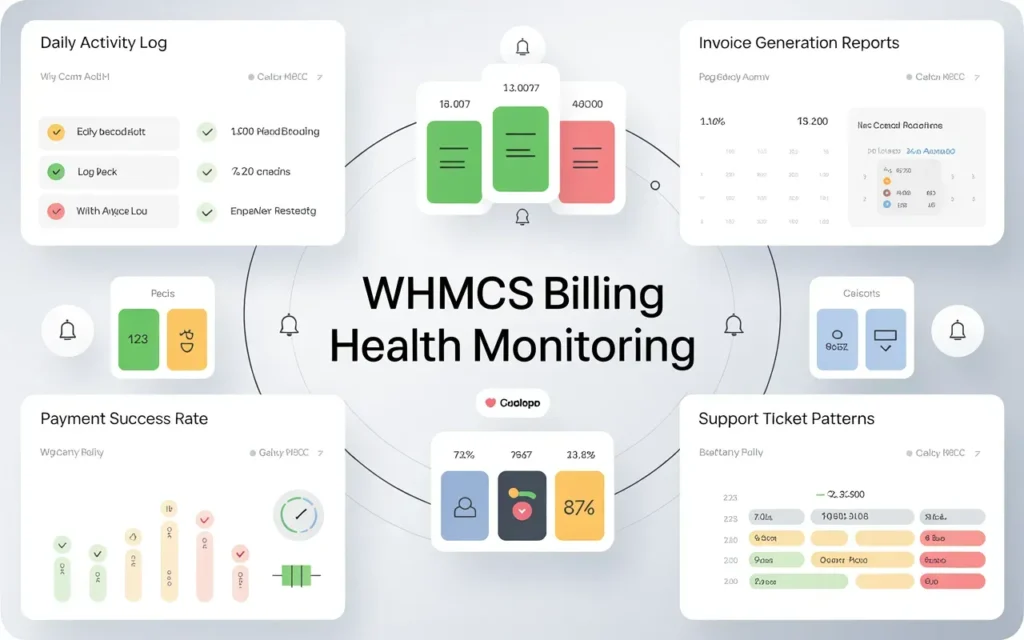
Vigilance is your safety net. You need to catch errors before your clients do.
Daily invoice reviews
I recommend spending 5 minutes every morning looking at the “System Activity Log” and the “Billing” overview.
Look for spikes. Did you process 500 invoices yesterday but 0 today? That’s a red flag. Did you get 10 failed payment notifications in a row? That suggests a gateway issue.
WHMCS reports to track anomalies
Use the Reports section. The “Income Forecast” and “Aging Invoices” reports are your friends.
If your “Aging Invoices” list is growing rapidly, it means automated suspensions might not be working, or payment capture is failing.
Client communication alerts
Pay attention to your support tickets. If you get two tickets in one day about the same billing issue, it’s not a coincidence. It’s a pattern. Investigate immediately.
How to Fix Billing Errors Without Losing Client Trust
Despite your best efforts, mistakes will happen. How you handle them defines your company.
Transparent communication
If you overcharge a client, tell them before they tell you. Send an email: “We noticed a billing error on your account. We have fixed it and refunded the difference. We apologize for the inconvenience.”
Clients respect honesty. They hate having to fight to get their money back.
Issuing credits and corrections
If you undercharged a client, you have a difficult choice. Legally, you might be entitled to the money, but is it worth the bad will?
Often, it is better to write off the small loss as a “goodwill gesture” and fix it for the next billing cycle. “We noticed your rate was too low, but we will honor it for this month. Next month it will return to the standard price.”
Preventing repeat issues
Once you fix an error, document it. Why did it happen? What setting did you change to fix it? Update your internal documentation so that the next person managing the WHMCS doesn’t make the same mistake.
Best Practices for Error-Free WHMCS Billing
To keep your billing smooth for the long haul, follow these operational habits.
Standard operating procedures
Create a checklist for adding new products. It should include steps like “Check recurring billing,” “Verify tax status,” and “Test order with dummy account.”
Regular configuration audits
Once a quarter, go through your automation settings and cron jobs. Software updates can sometimes reset preferences or introduce new features that change how old settings work.
Backup and rollback strategies
Always backup your WHMCS database before making major changes to automation or pricing. If you accidentally execute a SQL command that changes everyone’s price to $0, you need to be able to restore the database to how it was an hour ago.
How Skynethosting.net Helps Agencies Run WHMCS Smoothly
Running a hosting business involves a lot of moving parts. The software license cost and the server performance are two huge factors in your success.
WHMCS-ready hosting environment
This is where Skynethosting.net really shines. We understand WHMCS because we use it. Our reseller hosting servers are optimized specifically for WHMCS automation.
We ensure that cron jobs execute reliably and that the PHP memory limits are high enough to generate hundreds of invoices without timing out.
Server optimization for automation
Automation is resource-intensive. If your hosting account is on a crowded, slow server, your cron jobs will stall. This leads to missed invoices and billing errors.
Skynethosting.net uses NVMe storage and LiteSpeed web servers. This means your WHMCS admin area loads fast, and your background automation tasks complete quickly and accurately.
Expert support for billing stability
Perhaps the biggest advantage is the cost. Skynethosting.net provides a lifetime free WHMCS license with all reseller hosting plans.
Considering a license can cost upwards of $15-20 a month directly from the developer, this is a massive saving. But beyond the money, it means you are dealing with a team that knows the software. If you have a billing configuration question, our support team can point you in the right direction.
Conclusion
Billing errors are stressful, but they are preventable. By taking the time to configure your product settings, securing your automation logic, and testing your gateways, you can eliminate 99% of the issues that plague hosting providers.
Billing accuracy builds long-term trust
Your invoice is often the only regular communication you have with your client. If it’s accurate and on time, it signals that your company is professional and reliable. If it’s wrong, it signals chaos.
Automation works when configured correctly
WHMCS is an incredible asset. It can run your entire business for you. But it needs a steady hand to guide it. Use the steps in this guide to audit your setup today.
And if you want a foundation that supports your growth—with free licensing and optimized servers—check out the reseller plans at Skynethosting.net. Let’s get your billing running like clockwork.
FAQ
What causes most WHMCS billing errors?
How do you configure products to avoid pricing mistakes?
What’s the safe way to set up WHMCS automation?
How to prevent payment gateway and tax issues?