
How to Delete an App in Linux Ubuntu — Step-by-Step Guide
TL;DR for Delete an App in Ubuntu
- Ubuntu lets you remove apps via graphical interface (Software Center) or terminal commands, with each method suited for different users.
apt removedeletes core files but keeps configs, whileapt purgeclears both program and associated system files for a cleaner uninstall.- Snap and Flatpak apps require their own commands:
sudo snap remove <app>for snaps, andflatpak uninstall <id>for Flatpak applications. - Manually installed .deb app packages can be removed with
dpkg -r <package>or fully purged usingdpkg -P <package>. - Run
sudo apt autoremoveandsudo apt cleanafter uninstalling to clear leftover dependencies and free storage. - Deleting all traces may involve manually removing user config folders, or using a helper tool like BleachBit for complete cleanup.
After more than a decade of working with Linux, I’ve seen how something as simple as deleting an app can trip up even seasoned users. Unlike other operating systems where you just drag an icon to the trash, Ubuntu gives you several ways to remove software. Each method has its purpose, and knowing which one to use is key to keeping your system clean and efficient.
If you’re managing an Ubuntu system, you’ll inevitably need to uninstall applications. Maybe you’re trying to free up disk space, remove a program you no longer need, or clean up a development environment. Whatever your reason, this guide is here to walk you through it.
I’ll cover everything from the user-friendly graphical interface to powerful terminal commands. We’ll explore the different package formats like .deb, Snap, and Flatpak, and I’ll show you how to ensure you’ve removed every last trace of an application, including its configuration files and dependencies. Think of this as your complete handbook for app management in Ubuntu.
What Are the Different Ways to Delete Apps in Ubuntu?
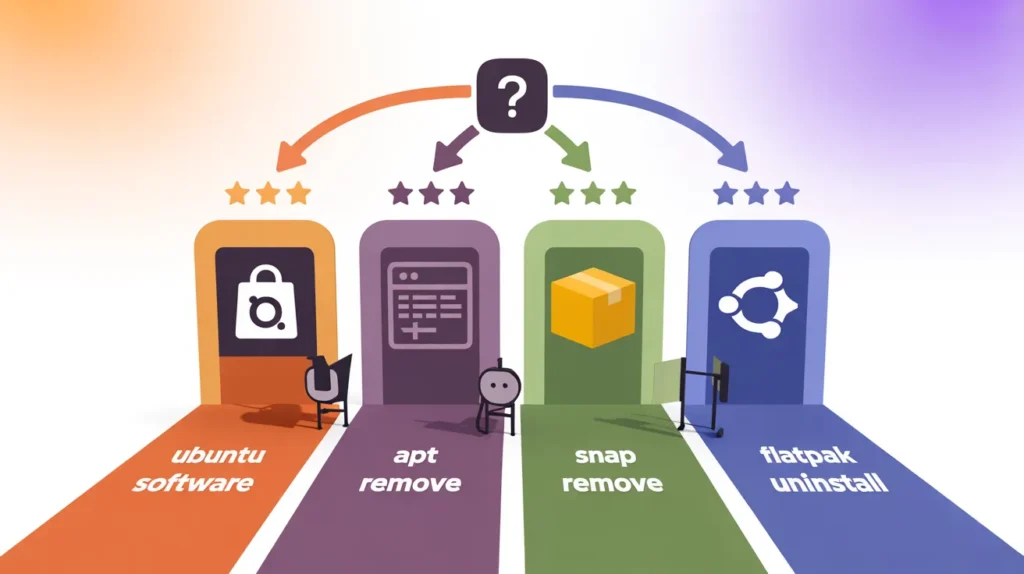
In Ubuntu, you can remove software using either a graphical user interface (GUI) or the command-line terminal. Both are effective, but they cater to different needs and user preferences.
The GUI method, primarily through the Ubuntu Software Center, is perfect for beginners. It’s visual, intuitive, and feels familiar if you’re coming from Windows or macOS. You can browse installed apps, click a button, and the system handles the rest. It’s straightforward and gets the job done without needing to remember any commands.
The Terminal method, on the other hand, is the powerhouse. It offers more control, precision, and speed, which is why developers and system administrators often prefer it. Using simple commands, you can not only uninstall an app but also purge its configuration files and clean up any leftover dependencies.
Uninstalling vs. Purging
When you use the terminal, you’ll encounter two primary commands for removal: apt remove and apt purge. Understanding the difference is crucial for maintaining a tidy system.
- Uninstalling (
apt remove): This command removes the application’s core files. However, it intentionally leaves behind user-specific configuration files, usually in your home directory or/etc. This is useful if you plan to reinstall the app later and want to keep your settings. - Purging (
apt purge): This command does everythingapt removedoes, but it also deletes the system-wide configuration files associated with the package. If your goal is to linux delete software completely, purging is the way to go.
Choosing the right method depends on your comfort level and your goal. For a quick and easy removal, the GUI works great. For a deep, thorough cleanse, the terminal is your best friend.
How to Delete Apps Using the Ubuntu Software Center
For those who prefer a graphical interface, the Ubuntu Software Center is the most straightforward way to uninstall apps. It’s designed to be user-friendly and requires no command-line knowledge.
Here’s a step-by-step guide:
- Open the Ubuntu Software Center: You can find it by clicking the orange shopping bag icon on your dock or by searching for “Ubuntu Software” in your applications menu.
- Find Your Installed Apps: Once the Software Center is open, click on the “Installed” tab at the top. This will display a list of all the applications currently installed on your system.
- Search for the App: You can scroll through the list or use the search bar to find the specific application you want to delete.
- Uninstall the App: Click on the application to open its details page. You will see a red “Uninstall” button. Click it.
- Authenticate the Removal: A prompt will appear asking for your password to authorize the change. Enter your password and click “Authenticate.”
The system will then proceed to remove the application. Once it’s finished, the app will disappear from the “Installed” list.
Pros and Cons of the GUI Method
Pros:
- User-Friendly: It’s intuitive and requires no technical expertise.
- Visual: You can easily see all your installed applications in one place.
- Safe: It handles dependencies automatically, reducing the risk of accidentally breaking your system.
Cons:
- Less Control: It doesn’t offer an option to purge configuration files, leaving some data behind.
- Slower: Navigating the GUI can be slower than typing a quick command in the terminal.
- Incomplete Picture: It may not show all packages, especially command-line tools or system libraries.
How to Delete an App in Ubuntu Using Terminal
Using the terminal to remove software ubuntu terminal is faster and gives you more granular control. The primary tool for this is the Advanced Package Tool (APT).
Using the apt remove Command
The sudo apt remove command is the standard way to uninstall a package. It removes the application binaries but leaves configuration files intact.
To use it, open your terminal and type:
sudo apt remove <package-name>
For example, to remove the VLC media player, you would run:
sudo apt remove vlc
The system will ask for your password and then show you which packages will be removed. Type Y and press Enter to confirm.
Using apt purge to Delete Configuration Files
If you want to completely remove an application, including its system-wide configuration files, the apt purge command is what you need. This is the difference between apt remove vs purge.
The command is:
sudo apt purge <package-name>
Continuing with the VLC example, a complete removal would look like this:
sudo apt purge vlc
This ensures that no old settings will interfere if you decide to install the software again in the future. I almost always use purge unless I have a specific reason to keep the configs.
How to Remove Snap Packages in Ubuntu
Ubuntu now uses Snap packages for many applications. These are containerized software packages that include all their dependencies, making them easy to install and manage. Removing them uses a different set of commands.
1. Check Installed Snaps
First, you might want to see a list of all the Snap packages installed on your system.
snap list
This command will show you a table with the application name, version, revision, and publisher.
2. Remove a Snap App
To uninstall snap package ubuntu, use the sudo snap remove command.
sudo snap remove <appname>
For instance, to remove the Spotify snap, you would run:
sudo snap remove spotify
Snaps are designed to be self-contained, so this command removes the application and its data cleanly.
3. Verify Removal and Clean Cache
After removal, you can run snap list again to confirm the app is gone. Snap also stores older versions (revisions) of packages, which can take up disk space. You can clean these up, but it’s a more advanced topic. For most users, snap remove is sufficient.
How to Remove Flatpak Applications in Ubuntu
Flatpak is another universal packaging system, similar to Snap. If you’ve installed applications from sources like Flathub, you’ll need to use Flatpak commands to remove them.
1. Check Installed Flatpaks
To see a list of your installed Flatpak applications, use this command:
flatpak list
2. Remove a Flatpak App
To remove flatpak ubuntu, use the flatpak uninstall command followed by the application’s ID (which you can find from the list command).
flatpak uninstall <application-id>
For example, to remove GIMP installed as a Flatpak:
flatpak uninstall org.gimp.GIMP
3. Clear Unused Dependencies
After uninstalling Flatpak apps, you might have some leftover runtimes or dependencies that are no longer needed. You can clean these up with:
flatpak uninstall --unused
This command is great for freeing up disk space.
How to Delete Apps Installed via .deb Files or dpkg
Sometimes, you might install software directly from a .deb file using dpkg (Debian Package Manager). Removing these packages also requires using dpkg.
1. Identify the Installed Package
First, you need to find the exact package name. You can use dpkg with grep to search for it.
dpkg -l | grep <appname>
For example, if you installed Google Chrome, you might search with dpkg -l | grep chrome. This will return the exact package name, like google-chrome-stable.
2. Remove the App
Once you have the package name, you can use the dpkg -r (remove) or dpkg -P (purge) command.
To remove the package but keep config files:
sudo dpkg -r <packagename>
To purge the package and its config files:
sudo dpkg -P <packagename>
Using the Google Chrome example:
sudo dpkg -P google-chrome-stable
How to Completely Remove App Data and Cache in Ubuntu
Even after using apt purge, some user-specific configuration files and cache may remain in your home directory. To truly linux delete software completely, you need to do a bit of manual cleanup.
Use apt autoremove and apt clean
After uninstalling a package, there might be dependencies that were installed with it but are no longer needed by any other application. You can remove these with:
sudo apt autoremove
To clear the local cache of downloaded package files (.deb files), use:
sudo apt clean
Running these two commands is good practice after any uninstall to free up disk space ubuntu.
Delete Leftover Config Files
Applications often store user-specific settings in hidden folders within your /home directory. These folders usually start with a dot (e.g., ~/.config/vlc or ~/.vlc).
To find and delete them, you can navigate to your home directory and look for folders related to the removed app. Be careful when deleting files this way—make sure you’re deleting the correct directory.
Use BleachBit for GUI Cleanup
If you’re not comfortable with manual deletion in the terminal, a tool like BleachBit can help. It provides a GUI to clean up leftover files, cache, and other digital junk from your system. Install it from the Software Center or with sudo apt install bleachbit.
How to Troubleshoot App Removal Errors
Sometimes, things go wrong. You might see a “Package Not Found” or “Unable to Remove” error. Here’s how to handle common issues.
- Fix Broken Packages: If an installation or removal process was interrupted, you might have broken packages. This command attempts to fix them:sudo apt –fix-broken install
- Force Remove Stuck Packages: If a package is being stubborn, you can try forcing its removal with
dpkg. Use this with caution, as it can sometimes lead to dependency issues.sudo dpkg –remove –force-remove-reinstreq <package-name> - Check for Dependencies: If you can’t remove a package, it might be because another essential package depends on it. The error message will usually tell you which packages are the problem. Investigate carefully before forcing a removal.
Why Managed Linux Hosting Simplifies App Management
While mastering these commands is empowering, managing software on a server can become a full-time job. This is where a managed hosting provider like Skynethosting.net becomes a game-changer.
With a managed VPS or cloud server, the hosting provider handles the low-level system administration tasks for you. This includes software installation, updates, and removals at the server level. Instead of wrestling with dependencies or broken packages, you can focus on running your applications.
Skynethosting.net equips its servers with user-friendly control panels and full SSH access, giving you the best of both worlds. You get the simplicity of a managed environment with the power to take control when you need it. This automated, optimized approach makes Linux server management far less daunting.
Your Path to a Cleaner Ubuntu System
As you can see, Ubuntu offers a robust and flexible system for managing applications. You can use the simple Ubuntu Software Center for quick removals, or you can leverage the power of the terminal with apt, snap, and flatpak commands for more precise control.
Remember to follow up your uninstalls with sudo apt autoremove and sudo apt clean to keep your system lean. For those managing servers, consider the benefits of a provider like Skynethosting.net, which simplifies these tasks so you can concentrate on what matters most. With these tools and techniques, you’re well-equipped to maintain a clean and efficient Ubuntu environment.
FAQs
What are the main ways to remove apps in Ubuntu?
What’s the difference between apt remove and apt purge?
How do you uninstall applications using Snap or Flatpak?
Can you delete apps installed via .deb files?