Migrating from Shared Hosting to NVMe VPS: A Complete Guide
TL;DR
- Shared hosting limits you with noisy neighbors sharing CPU/RAM/storage, causing spikes and no custom control.
- NVMe VPS delivers 10-20μs latency, 1M+ IOPS via PCIe—perfect for traffic growth, databases, eCommerce.
- Migrate when loads >2s, traffic spikes crash sites, or security needs root access.
- Backup files/DBs first, transfer via SFTP/phpMyAdmin, lower DNS TTL to 300s for zero-downtime switch.
- Test thoroughly post-move: forms, carts, emails; optimize with caching/CDN like LiteSpeed/Cloudflare.
- SkyNetHosting offers free expert migrations, 25 global DCs, scalable NVMe plans with 99.9% uptime.
I have spent the last 10 years working in web hosting and server management. I talk to website owners every single day. A common theme always comes up.
You built a great website. It is getting more traffic. Sales are up. But suddenly, your website feels slow. It takes forever to load a page. Your dashboard shows you are hitting resource limits.
This happens to almost everyone. You have simply outgrown your shared hosting plan.
Migrating from shared hosting to NVMe VPS is the smartest next step. It is a massive upgrade for your website speed, security, and growth. I know the idea of moving servers sounds scary. You worry about downtime or losing data.
But I promise you, it does not have to be hard.
I will walk you through exactly how to do a shared hosting to VPS migration. We will look at why it matters and how to do it safely. Let’s get started.
Why Migrate from Shared Hosting to NVMe VPS?
You might wonder why you need to move at all. The answer comes down to how different hosting environments work.
Limitations of shared hosting
Shared hosting is great when you first start a site. It is cheap and very easy to use. But the name says it all. You share the server with hundreds of other websites.
You share the CPU, the memory, and the storage drives.
If another website on your server gets a massive traffic spike, your website slows down. We call this the “noisy neighbor” effect. You also have very little control. You cannot install custom software. You are stuck with the default setup.
If you want a deeper look at this, read our guide on VPS vs. Shared Hosting.
Advantages of NVMe VPS
A Virtual Private Server (VPS) fixes the noisy neighbor problem. You get your own dedicated slice of the server. No one else can touch your CPU or RAM.
When you add NVMe storage to a VPS, magic happens.
Older servers use SATA solid-state drives. Those drives use old communication protocols. NVMe (Non-Volatile Memory Express) is different. It plugs directly into the server’s motherboard using PCIe lanes. This cuts out the middleman. Your data moves incredibly fast.
How migration improves website speed and reliability
The speed difference is huge. I recently helped a store owner migrate their website. On shared hosting, their pages took over four seconds to load.
After moving to an NVMe server, pages loaded in under one second.
Older SATA drives can only handle one queue of data at a time. NVMe drives can handle 65,535 queues at once. This means your server can process thousands of visitor requests at the exact same time without breaking a sweat.
What Are the Benefits of NVMe VPS Hosting?
There are specific reasons why the tech world is moving toward NVMe.
Faster storage and low latency
Latency is the delay before a transfer of data begins. High latency kills website performance.
Standard SATA drives usually have a latency of around 100 to 200 microseconds. NVMe drives drop that latency down to 10 to 20 microseconds. It is almost instant.
Every time someone clicks a link on your site, the server finds the file instantly. This is why NVMe VPS hosting improves website speed so drastically.
Higher IOPS for database-heavy sites
IOPS stands for Input/Output Operations Per Second. It measures how many tasks your hard drive can do in one second.
This is critical for WordPress sites, eCommerce stores, and custom apps. Every time a customer adds an item to a cart, it hits your database. Standard drives top out at about 100,000 IOPS. NVMe drives can easily handle over 1,000,000 IOPS.
If you run a heavy application, you might find our guide on NVMe VPS for developers helpful.
Improved uptime and scalability
Shared servers crash when they get overloaded. A VPS gives you stability.
You also get the ability to scale. If your business is growing, you can easily add more RAM or CPU power to your VPS. You do not have to move to a new server to upgrade. You just click a button.
When Should You Consider Migrating?
How do you know it is the exact right time to upgrade? Look for these three signs.
High traffic growth
More traffic is a good problem to have. But if your traffic is spiking and your site is failing, you need a bigger engine.
If you regularly get thousands of visitors a day, shared hosting cannot keep up. Your visitors will start seeing 503 error pages. Upgrading fixes this immediately.
Slow website performance
Google cares about site speed. Your visitors care about site speed.
If your pages take more than two seconds to load, you are losing money. People will leave your site and go to a competitor. If you already optimized your images and added caching, but the site is still slow, your hosting is the bottleneck.
Need for enhanced security and control
Shared hosting puts your site next to hundreds of others. If one of those sites gets hacked, it can put the whole server at risk.
A VPS isolates your website. You get a private environment. You also get “root access.” This means you can install custom firewalls and specific security software that shared hosting blocks.
Step-by-Step Migration Process
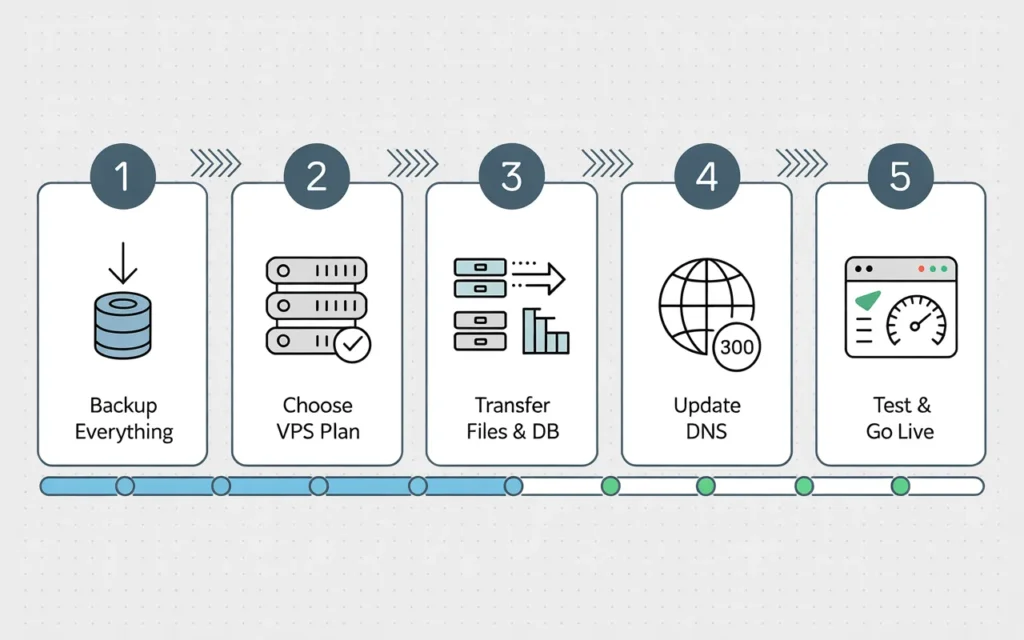
Doing a VPS hosting migration requires a solid plan. Here is the safest way to move your site to VPS hosting.
Backup your website and database
Never skip this step. Ever.
Before you touch anything, make a full backup of your website. If you use cPanel, use the Backup Wizard to download a full copy of your home directory and databases to your computer.
If you use WordPress, use a plugin like UpdraftPlus. Save that backup file somewhere safe.
Choose the right NVMe VPS plan
You need a server that fits your needs.
A small blog might only need 2GB of RAM. A busy WooCommerce store needs at least 8GB of RAM and multiple CPU cores.
Do not guess. Look at your current resource usage and double it to give yourself room to grow. For more tips on sizing, read our guide on choosing the right VPS plan.
Transfer files, databases, and configurations
Once your new server is ready, the real work begins.
First, use an SFTP program to move your website files from the old host to the new VPS. Next, go to phpMyAdmin on your old host and export your database. Import that database into the new server.
Finally, connect the files to the database by updating your configuration files (like wp-config.php for WordPress).
How to Handle DNS and Email During Migration
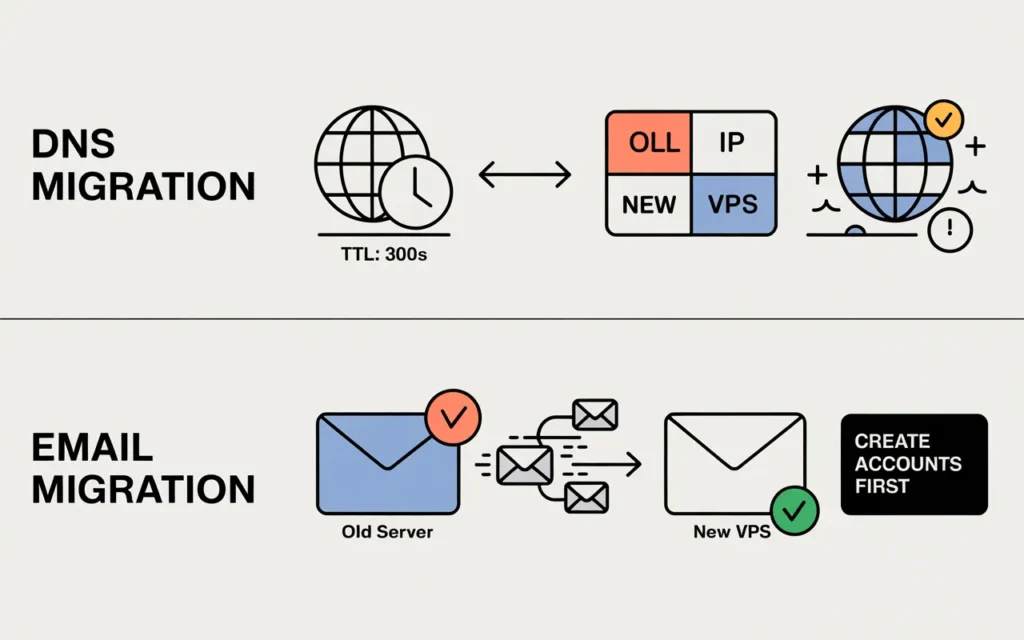
This is where most people get stuck. Moving the files is easy. Changing the domain name settings is tricky.
Minimizing downtime with DNS updates
Your DNS records tell the internet where your website lives.
When you change servers, you have to update your DNS. Normally, this takes 24 to 48 hours to update globally. This is called DNS propagation time.
To speed this up, lower your DNS TTL (Time To Live) setting to 300 seconds. Do this two days before your migration. This tells the internet to only remember your server address for five minutes at a time. When you finally make the switch, it happens almost instantly.
Migrating email accounts securely
Do not forget your emails. If your emails are hosted on your old server, they need to move too.
Before you change your nameservers, create the exact same email accounts on your new server. Then, use a tool like IMAPSync to copy your old emails over. Never delete your old hosting account until you are sure your emails are working perfectly on the new server.
Verifying post-migration functionality
You need to test the new server before you make it live to the public.
You can use a “hosts file” trick on your computer. This lets your computer pretend the new server is live, while the rest of the world still sees the old server.
Click around your site. Test your contact forms. Try to buy a product. Make sure everything works flawlessly.
Common Challenges and How to Avoid Them
Even with a good plan, things can go wrong. Here is how to protect yourself.
Downtime and data loss prevention
Downtime happens when you switch your DNS before the new server is ready. Data loss happens when people leave comments or buy products on your old site while you are moving to the new one.
To avoid this, put your old site into “Maintenance Mode” right before you start the transfer. This stops new data from being created while you copy things over.
Compatibility issues with PHP, databases, and CMS
Your old server might run PHP 7.4. Your new server might run PHP 8.2. This difference can break your website.
Check the software versions on your old host. Ask your new host to install the exact same versions on your new VPS. You can read more about setting up a server properly in our post about NVMe web hosting with cPanel.
Performance testing after migration
Once your site is live on the new NVMe server, test it.
Run your URL through GTmetrix or Google PageSpeed Insights. Compare the new scores to your old scores. You should see a massive improvement in your server response time.
How SkyNetHosting.Net Inc. Supports Shared Hosting to NVMe VPS Migration
Moving servers takes time. It can be stressful. That is why we do it for you.
Expert migration assistance
At SkyNetHosting.net, we offer free, expert migration services. Our team handles the entire move. We copy your files, transfer your databases, and move your emails.
We guarantee a downtime-free migration. You do not have to lift a finger.
Reliable infrastructure for smooth transition
We have been doing this for over 20 years. We currently host over 700,000 websites.
Our servers use enterprise-grade NVMe drives. We have 25 different data center locations across the globe. We even use high-speed NVMe drives for our nameservers. If you want to know more about how that helps, read our post on what a nameserver is.
Scalable NVMe VPS plans for future growth
We make it easy to grow. Our NVMe VPS hosting plans let you add resources instantly. You get full control, daily backups, and a 99.9% uptime guarantee.
It is easy to see why we are considered one of the best NVMe VPS hosting providers in the industry.
Tips for Optimizing Your Website After Migration
Moving to a fast server is step one. Step two is tuning your website to run even faster.
Enable caching and CDN
NVMe storage reads files instantly. Caching stops the server from having to rebuild the file every single time.
If you use WordPress, install a caching plugin like LiteSpeed Cache. Connect your website to a CDN like Cloudflare. A CDN stores copies of your images on servers all over the world, bringing them closer to your visitors.
Optimize databases and media files
Clean up your database. Delete old post revisions and spam comments.
Large images slow down websites. Compress your images before you upload them. Use tools to serve images in modern formats like WebP. Less data means a faster page load.
Monitor server performance and uptime
Keep an eye on your new server. Use a free tool like UptimeRobot to ping your site every five minutes.
Watch your server metrics in your control panel. If your RAM usage stays above 80% all the time, it means your website is still growing fast. You might need to add a bit more memory to keep things running smoothly.
Making the Switch for Better Performance
Migrating to NVMe VPS improves website speed, reliability, and SEO
Fast websites win on the internet today. Google ranks fast sites higher. Visitors buy more from fast sites. Upgrading your infrastructure directly impacts your bottom line.
Proper planning avoids downtime and data loss
You do not have to accept downtime as a normal part of moving servers. Back up your files, lower your DNS TTL, and test everything before going live. A careful plan keeps your business running.
SkyNetHosting.net ensures a smooth, secure migration with scalable hosting solutions
You do not have to do this alone. Our expert team is ready to move your site to a lightning-fast NVMe server with zero downtime. Get the performance your website deserves today.
FAQs
Why migrate from shared hosting to NVMe VPS?
Shared hosting shares resources with hundreds of sites, causing “noisy neighbor” slowdowns during spikes and limiting custom software. NVMe VPS provides dedicated CPU/RAM plus PCIe speeds (1M+ IOPS, 10-20μs latency) for reliable, fast performance on growing sites.
What are key signs it’s time to upgrade?
High traffic causing 503 errors, pages loading over 2 seconds despite optimizations, or needing root access/security tools signal shared limits. NVMe VPS ensures stability, scalability, and SEO boosts via sub-second responses.
How to backup before migration?
Use cPanel Backup Wizard or WordPress plugins like UpdraftPlus to download full files/databases. Store safely off-server; enable maintenance mode to prevent new data during transfer, avoiding loss entirely.
What’s the step-by-step transfer process?
Choose matching resources (double current usage), SFTP files, export/import DB via phpMyAdmin, update configs like wp-config.php. Lower DNS TTL to 300s 2 days prior, test via hosts file, then propagate changes.
How to handle DNS/email to minimize downtime?
Recreate emails with IMAPSync before switch; use hosts file for private testing. DNS propagates fast post-TTL drop; verify forms/carts/emails work perfectly before public go-live to ensure seamless operation.
What post-migration optimizations boost speed?
Install LiteSpeed Cache, CDN like Cloudflare, compress images to WebP, clean DB revisions/spam. Monitor via UptimeRobot/GTmetrix; scale RAM/CPU instantly on providers like SkyNetHosting for sustained growth.
