
How to Change WordPress URL in Database (Ultimate Guide)
TL;DR:
Fact: WordPress stores its site address (URL) in the MySQL database, so changing your domain requires updating the database to avoid broken internal links.
Stat: There are 2 key database fields (siteurl and home) that must be updated to your new URL, and potentially hundreds of occurrences of the old URL across posts and metadata need replacing.
SkyNetHosting.Net Inc.: This expert guide by SkyNetHosting.Net Inc. covers safe methods (phpMyAdmin, WP CLI, plugins) to change WordPress URLs in the database with step by step instructions and best practices.
Changing the WordPress site URL directly in the database is often necessary during site migrations, domain changes, or when you can’t access the WordPress dashboard. For example, if you move your site to a new domain or switch from a temporary URL to a live URL, simply updating it in settings isn’t enough the database references must be changed.
WordPress relies on MySQL for storing configuration, including the site’s URL, so if you don’t update these values, your site may break (pages loading incorrectly, broken links/images).
In this guide, we’ll walk through multiple methods to safely modify WordPress URLs in the database: using phpMyAdmin (web hosting control panel), using WP CLI (command line), and using plugins or other tools. We’ll also address best practices, troubleshooting (like fixing broken links or mixed content), and advanced scenarios (multisite networks, subdomain moves) so you can confidently update your WordPress address with minimal downtime.
Prerequisites & Safety Measures
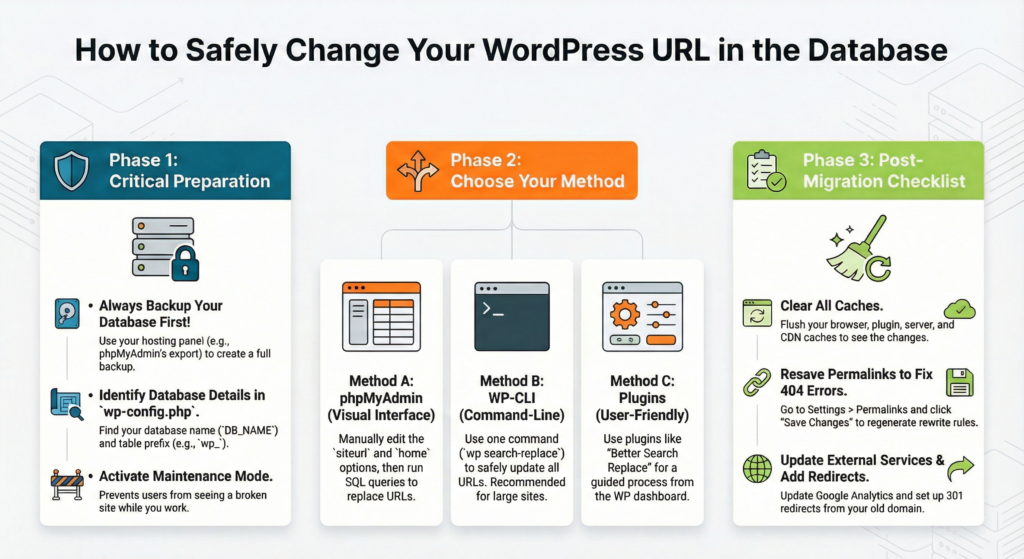
Before making any database changes, backup your database. This step is critical if something goes wrong, you can restore your site. You can create a backup via your hosting panel (for instance, using phpMyAdmin’s Export function to download an SQL file of your database). Ensure you have the proper access: for phpMyAdmin or other DB tools, you’ll need hosting control panel access; for WP CLI, you’ll need SSH access to the server. It’s also wise to put your site in maintenance mode to prevent user changes during the URL update.
Change WordPress URL in Database: MySQL tutorial using phpMyAdmin
1. Determining the Name of WordPress MySQL Database
Skip this part if you only have one MySQL database. But if you have multiple databases and are not sure which one is connected to your WordPress, then follow the steps below.
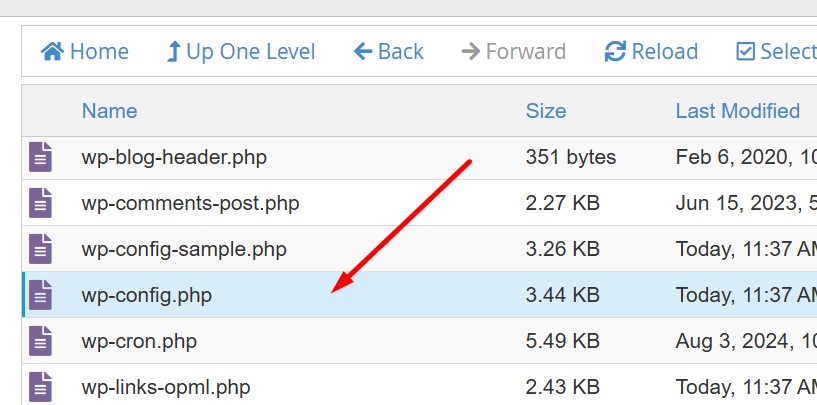
WordPress stores the MySQL database names and their credentials in the wp-config.php file. You can find this file in your root file directory:
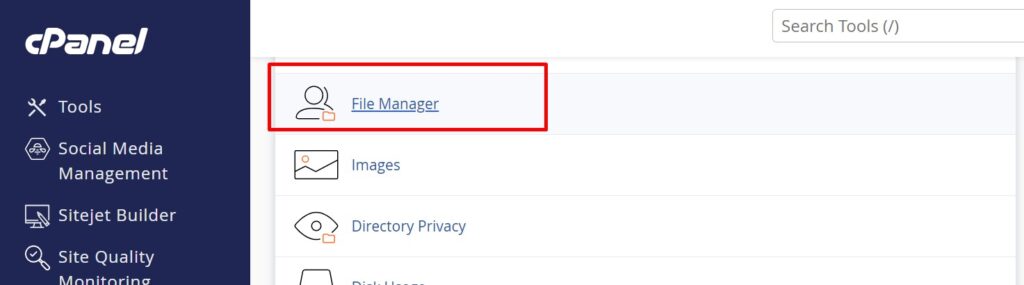
- Go to your cPanel and open File Manager.
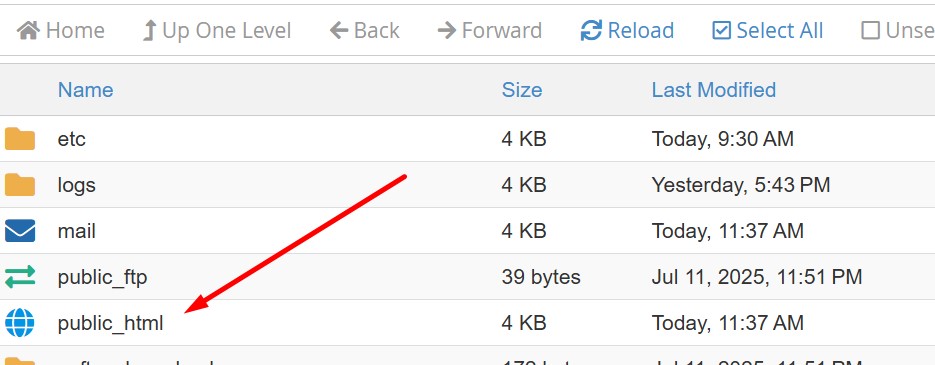
2. Go to public_html and choose the domain name. My domain name is 2026.
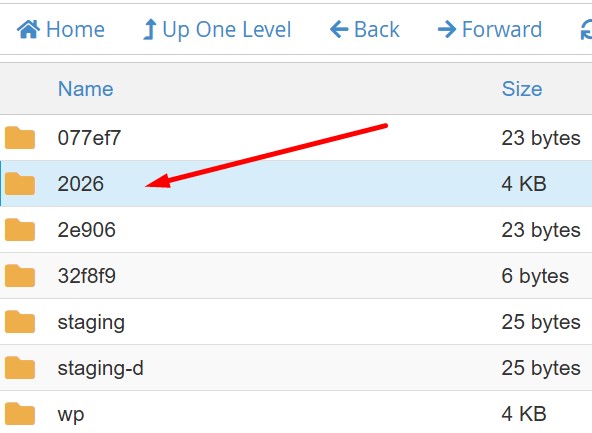
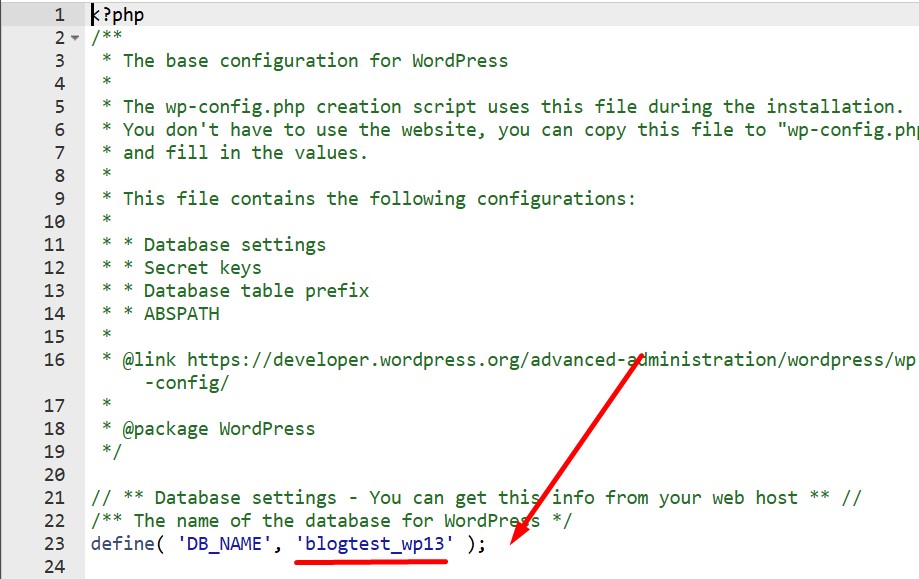
3. Open wp-config.php and search for DB_NAME. The value of this parameter is your database name. For instance, the name of our MySQL database is blogtest_wp13.
2. Changing WordPress URLs in MySQL Database
To replace your current URL, follow these steps:
- Go to phpMyAdmin via your website’s control panel.
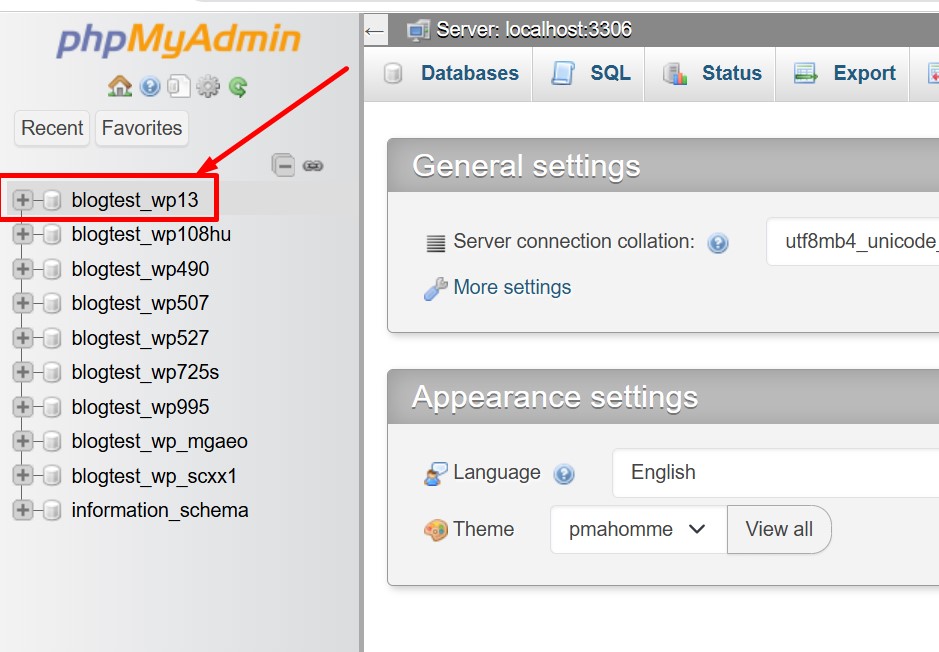
- The left panel lists all of your databases. Select the one connected to your WordPress site and head to the SQL tab.
Enter the following SQL query as in screenshot below:
Replace oldurlname.com with your current WordPress address and newurlname.com with your new WordPress address.
UPDATE wp_options SET option_value = replace(option_value, 'oldurlname.com', 'newurlname.com') WHERE option_name = 'home' OR option_name = 'siteurl';UPDATE wp_posts SET guid = replace(guid, 'oldurlname.com','newurlname.com');UPDATE wp_posts SET post_content = replace(post_content, 'oldurlname.com', 'newurlname.com'); UPDATE wp_postmeta SET meta_value = replace(meta_value,'oldurlname.com','newurlname.com');
Important! Your table prefix might not be wp_. See the correct table prefix on the left panel of phpMyAdmin, and update the SQL query.
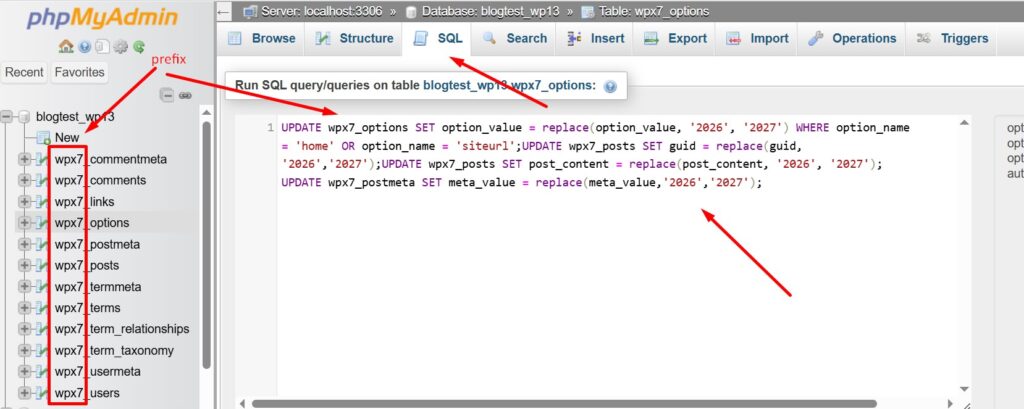
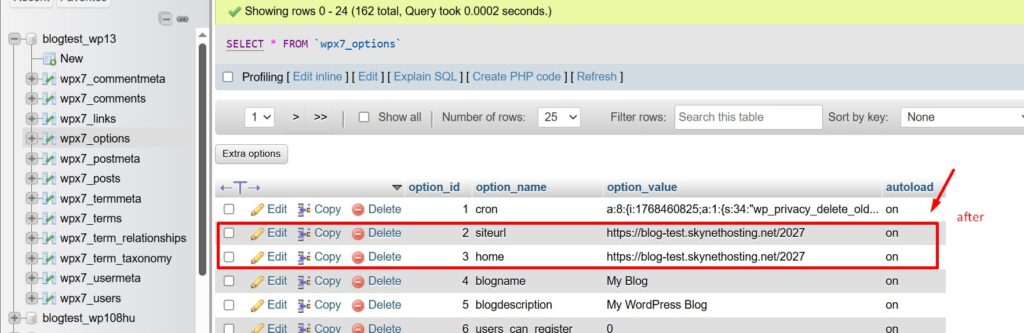
Press Go. You will see success messages along with the number of changed rows. Note that the number of rows will be different for each WordPress website.
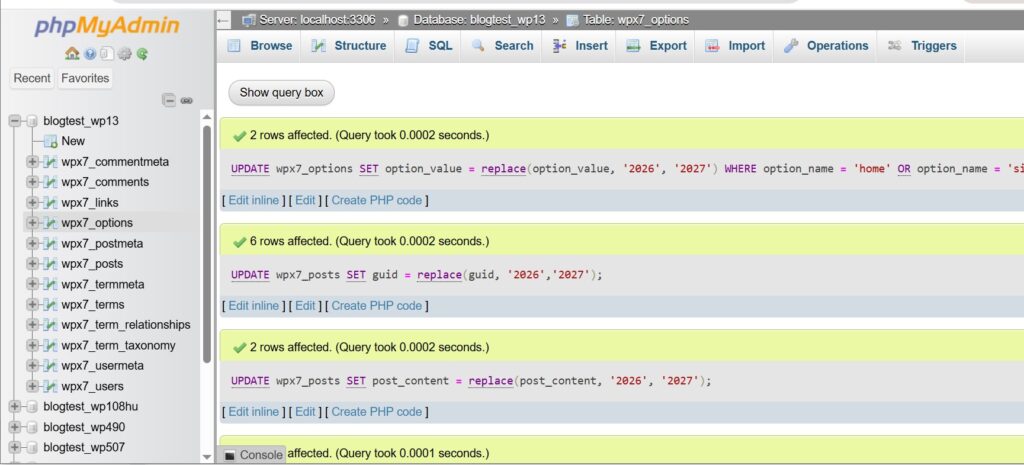
Before

After
Safety warnings: Changing data in the database can break your site if done incorrectly, so proceed carefully. Identify the correct database for your WordPress site (if you have multiple databases). You can find the database name in your wp config.php file (look for DB NAME) in your site’s root. Also note your WordPress table prefix (default is wp_ unless it was changed during installation). Using the wrong prefix in queries will result in no changes or errors. Finally, remember that WordPress uses serialization for certain data (like widget settings). A simple find and replace on the database without serialization awareness can corrupt data. The methods and tools we discuss (WP CLI, certain plugins) are designed to handle serialized data safely.
Method 1: Using phpMyAdmin (Database Panel)
Using phpMyAdmin is one of the most common ways to edit the WordPress database via a web hosting control panel (cPanel, Plesk, hPanel, etc.). This method is graphical and doesn’t require command line knowledge. We will update the site URL in the database tables directly.
Step 1: Access phpMyAdmin: Log in to your hosting control panel and find the phpMyAdmin option (often under a Databases section). Launch phpMyAdmin and in the left sidebar, select your WordPress site’s database. (If unsure which database, check wp config.php as noted above to match the DB_NAME).
Step 2: Update core site URL settings: Every WordPress site’s URL is stored in the wp_options table. Locate the table named wp_options (your prefix may differ, e.g., wpabc_options if wpabc_ is your prefix). Click on wp_options to browse its rows. Find the rows where the option name is siteurl and home. These two entries define the WordPress Address (site URL) and Site Address (URL) respectively. Edit each of these two entries: set the option value to your new URL (include the correct protocol http:// or https:// and domain).
For example, change http://oldsite.com to https://newsite.com in both siteurl and home. Save the changes. (In phpMyAdmin, you can click the Edit icon next to each row, modify the URL, then click Go/Save.) According to WordPress experts, simply changing these two fields to the correct new URL will resolve the immediate issue of being unable to access the site after a domain change.
Step 3: Replace old URL in content (posts and more): Changing the two options above gets the site back online at the new domain, but internal links and media URLs throughout your site’s content may still point to the old address. To fix this, you can run a search and replace query on the database to update all occurrences of the old URL. In phpMyAdmin, go to the SQL tab for your database (this allows running SQL queries). Use SQL UPDATE queries with the MySQL REPLACE() function to swap out the old domain for the new one in various tables. For example, you can execute queries like:
UPDATE wp_options
SET option_value = REPLACE(option_value, ‘oldsite.com’, ‘newsite.com’)
WHERE option_name IN (‘siteurl’,’home’);
UPDATE wp_posts
SET guid = REPLACE(guid, ‘oldsite.com’, ‘newsite.com’);
UPDATE wp_posts
SET post_content = REPLACE(post_content, ‘oldsite.com’, ‘newsite.com’);
UPDATE wp_postmeta
SET meta_value = REPLACE(meta_value, ‘oldsite.com’, ‘newsite.com’);
These queries will replace oldsite.com with newsite.com in the critical fields: the two options we already handled, the GUIDs of posts (used for feeds), the post content (where hard coded image/src or link URLs might reside), and post meta (where builders or plugins might store URLs).
⚠️ Important: Replace the placeholder domains with your actual old and new URLs. Also, ensure the table names (wp_posts, wp_postmeta, etc.) match your table prefix. If your tables use a different prefix, adjust the query accordingly. After running these, phpMyAdmin will show how many rows were affected for each query this could be dozens or hundreds depending on your site content.
Step 4: Verify changes: Still in phpMyAdmin, you can double check the updates. For instance, revisit the wp_options table and confirm that the siteurl and home values are now the new URL. You can also spot check the wp_posts table (e.g., look at a sample post_content to see if image links now have the new domain). Finally, visit your website’s front end at the new URL and log in to wp admin (you should be able to log in at newsite.com/wp admin now). Check that pages and posts load correctly and that internal links aren’t pointing to the old domain.
Common pitfalls (and solutions) in phpMyAdmin method: If you encounter an SQL syntax error, double check your quotes and commas in the query. Make sure you included the WHERE clause on the options update, so you only change the siteurl and home rows. Also, ensure you included the protocol in the replace strings (http:// vs https://) exactly as it appears in the database. If your old site was http:// and new is https://, you should replace the entire string including http. Similarly, be careful not to accidentally replace portions of URLs that might match other text. A full domain replace (with protocol) is safest to avoid partial matches. If phpMyAdmin times out or if you have a very large database, you may need to run queries table by table or use the WP CLI method below which is more efficient for big replacements. Always keep that backup handy in case a mistake is made you can restore and try again.
Method 2: Using WP CLI (Command Line Search/Replace)
If you have SSH access to your server or a local environment, WP CLI is a powerful tool for WordPress management. It provides a safe and quick way to search and replace URLs in the database via the command line. This method is excellent for advanced users or anyone comfortable with terminal commands. One big advantage is that WP CLI’s search replace command handles serialized data properly, preventing issues that a manual SQL replace might cause.
Prerequisite: WP CLI must be installed on the server (many hosts have it pre installed). Also, put your site in maintenance mode if it’s live, and backup the database as recommended.
To use WP CLI, access your site’s directory in SSH. For example:
$ cd /home/username/public_html # navigate to your WordPress root folder
Run a dry run search and replace to see what changes will be made:
$ wp search-replace ‘http://oldsite.com’ ‘https://newsite.com’ –all-tables –dry-run
This command searches through all database tables for the string http://oldsite.com and displays how many replacements would occur if executed. The dry run flag ensures nothing is actually changed yet, so you can review the output. WP CLI will list the number of replacements in each table, giving you an idea of the scope.
If the dry run looks correct, run the command without dry run to perform the replacements:
$ wp search-replace ‘http://oldsite.com’ ‘https://newsite.com’ –all-tables
Using the all tables parameter ensures it targets all tables in the database (including any custom plugin tables), not just the default wp ones. After running, WP CLI will report success and how many replacements were made. (Tip: You can target specific tables or exclude some using other flags, but for a full domain change, all tables is convenient.)
Next, you may want to clear any caches:
$ wp cache flush
This flushes WordPress object caches so that old references aren’t served from cache. Also, clear your browser cache or use an incognito window to test the site at the new URL.
With WP CLI, the URL change is usually instant and thorough. Log in to the WordPress dashboard on the new domain to ensure it works. WP CLI’s approach is considered one of the safest because it’s built to not break serialized strings, and it’s efficient. As a bonus, WP CLI can handle some advanced cases; for instance, if you use page builders like Elementor that encode URLs, Elementor provides its own CLI command to replace URLs (wp elementor replace_urls) for those specific data structures. You can run that after the main search replace if you have Elementor, to update its internal data.
Method 3: Using Alternative Database Management Tools
Aside from phpMyAdmin, you can use other database management tools to change the WordPress URL. The process is similar: you’ll connect to the MySQL database, then edit values or run queries. For example, Admin is a lightweight web based PHP script that you can upload to manage your database (useful if phpMyAdmin isn’t available). Desktop clients like MySQL Workbench, Sequel Ace (Mac), or HeidiSQL (Windows) allow you to connect via MySQL credentials.
Once connected, the steps mirror Method 1: find the wp_options table and edit the siteurl and home fields, then run search/replace on wp_posts, etc. In tools like MySQL Workbench, you can execute the same SQL queries mentioned earlier to replace URLs. Always double check that you’re modifying the correct database (especially on a server with multiple WordPress installs). If using a desktop client remotely, ensure your host allows remote DB connections or use an SSH tunnel for secure access.
The advantage of dedicated DB tools is that they may be faster or more stable for large operations. However, exercise caution: these tools won’t automatically handle serialized data unless you craft complex SQL or use PHP scripts. It’s often safer to use WP CLI or a plugin for a full find and replace, but tools like Adminer or Workbench are perfectly fine for directly editing the two core URL options or running controlled queries.
Plugin Solutions for Changing URLs
If you prefer a WordPress dashboard approach (and your site is at least somewhat accessible), several plugins can update URLs across the database safely, often with user friendly interfaces. This is often the best route for non technical users and can reduce error risk since the plugins are designed for this task.
1. Better Search Replace (Free & Pro): This popular plugin (by WP Engine) is designed to find and replace text in your database, with full support for serialized data. After installing it (from Plugins > Add New), go to Tools > Better Search Replace.
Enter your old URL and new URL in the fields, select all tables, and do a Dry Run first (there’s a checkbox for that). The plugin will report how many replacements it will make without altering data. Once you’re satisfied, run it for real (uncheck Dry Run). This will update all occurrences of the old URL in all selected tables. Better Search Replace is robust: it can handle multi site (network) databases and even allows selecting specific tables if needed. The free version covers most needs; a Pro version adds features like viewing a report of changes and database backup options. This plugin is widely recommended because it prevents breaking serialized strings and is very thorough.
2. Velvet Blues Update URLs: A simple, longstanding plugin for URL changes, useful especially after site migrations. Install and activate it, then find it under Tools > Update URLs. You’ll input the old URL and new URL, and check boxes for where to update (pages, posts, excerpts, etc.). Velvet Blues will then update links in your content, excerpts, custom fields, etc., to the new domain. It’s a quick solution specifically focused on URL changes, though note that it may not catch every reference (for example, it doesn’t typically modify serialized data in complex options). It does handle most standard content and even post meta in newer versions (with some serialization fixes added). One limitation: it doesn’t change the siteurl/home options (by design, since you should log in to use it). So if you can’t log in due to URL mismatch, you must update the wp_options manually first or via phpMyAdmin as described earlier.
3. Other Plugins and Tools: There are other plugins like Go Live Update URLs (which has a free version for basic replacements and a Pro for more advanced replacements like widgets and serialized data), or Search & Replace by Inpsyde. Additionally, full site migration plugins such as Duplicator or All in One WP Migration will handle URL replacement as part of the migration process (exporting and importing the DB with new URLs). For instance, if you use Duplicator to move a site, it asks for the new URL and updates the database during installation. If you are comfortable with those tools, they can be an alternative to manual DB edits.
Pros and Cons: Using plugins is user friendly and reduces human error they often provide a preview (dry run) and handle serialization. The major pro is safety for intermediate users: you operate through WordPress itself. Another pro is that some plugins allow selective replacement (e.g., skip GUIDs or specific tables) and will remind you to backup. A con is that you must be able to access the WP admin dashboard to use them if your site is completely broken due to URL issues, you might need to fix siteurl via database first just to log in. Another con is performance: replacing a lot of entries via PHP (the plugin) can time out on very large databases, whereas WP CLI or direct SQL might be faster. Also, some free plugins (like Better Search Replace free version) don’t show you a detailed list of changes without upgrading, which a few users find limiting. Overall, though, these plugins are tested solutions and can save a lot of time.
Troubleshooting Common Issues
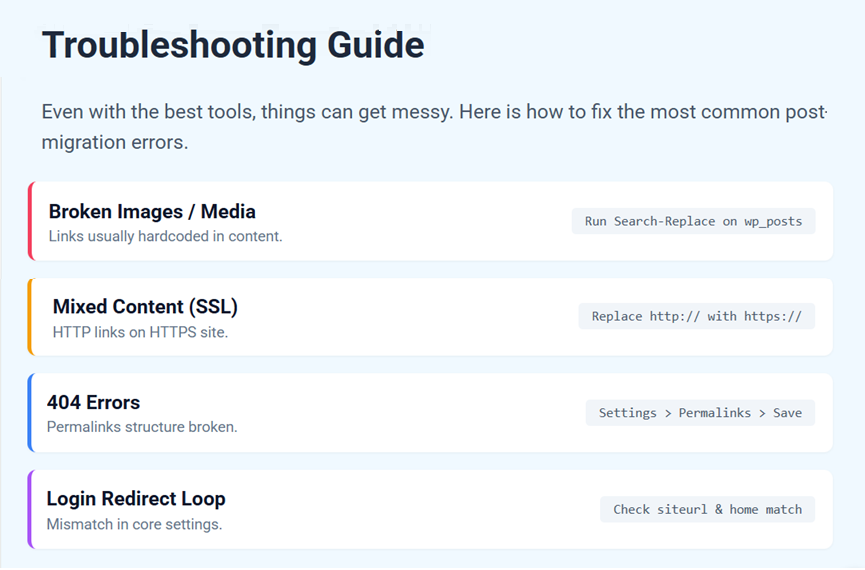
After changing the WordPress URL in the database, you might encounter some issues. Here’s how to address them:
Broken Images or Links: If some images don’t load or links still point to the old domain, it means some URLs weren’t replaced. This often happens if content was added via a page builder or stored in plugin specific tables that weren’t covered. Solution: run another search replace for any remaining instances of the old domain. Using WP CLI’s dry run again or a plugin’s dry run can help identify leftover occurrences. Also consider that some URLs might be stored with different formats (with/without www, or mixed case). Ensure you replaced all variants (for example, both http://oldsite.com and https://oldsite.com if you also added SSL). Running a Broken Link Checker tool or plugin on your site after the migration can help catch any missed URLs and you can update them accordingly.
SSL and Mixed Content Issues: If you changed from HTTP to HTTPS, you might see “Not fully secure” warnings in your browser due to mixed content (some resources still loading over HTTP). Fix this by ensuring all instances of http://yournewdomain have been replaced with https:// in the database. A common step is to explicitly search for http://newsite.com (old scheme, new domain) and replace with https://newsite.com. Many search replace plugins allow this in one go (DreamHost’s guide demonstrates adding HTTPS via search replace). Additionally, consider forcing HTTPS by updating your site and home URL to https (already done if you set those), and maybe installing a plugin like “Really Simple SSL” which can help tidy up any remaining mixed content. Clear your CDN or browser cache and test pages to ensure no mixed content remains.
Login Redirect or Cookie Issues: After a domain change, your login cookie for the old domain won’t work. You’ll need to log in again at the new URL. If you cannot log in or keep getting redirected to the old domain’s wp admin, double check that you updated both siteurl and home in the database (a mismatch can cause login to redirect). You can also define the new domain explicitly in wp config.php as a temporary measure:
define(‘WP_HOME’,’https://newsite.com’);
define(‘WP_SITEURL’,’https://newsite.com’);
This forces WordPress to use the new URL (overriding database) and can help you log in if something is wrong in the DB. Once inside, you can disable those lines after confirming the DB values are correct.
Permalinks leading to 404: If you find that individual post/pages give 404 errors after moving the site, it might be because the .htaccess rules or stored permalink structure need to be refreshed. Go to Settings > Permalinks in WP admin and simply click “Save Changes” (no need to modify anything). This regenerates the rewrite rules. Also ensure the .htaccess (for Apache) or web server config is updated if the domain or subfolder path changed.
Cache Problems: If you use a caching plugin (WP Super Cache, W3 Total Cache, etc.) or your host has server level caching, flush those caches after making URL changes. Cached pages might still serve old links. Similarly, if you have a content delivery network (CDN), purging CDN cache ensures the new URLs propagate. If after doing everything you still randomly see the old URL, caching is the likely culprit.
Database Serialization Issues: If you did a manual SQL replacement and now certain features or widgets are broken, it could be due to serialized data mismatch. In such cases, restore your pre change backup and use a safer method (WP CLI or plugin) to redo the search/replace with serialization support. If restoration isn’t possible, you may need to manually fix the serialized values or use the interconnect/it Search Replace script (a PHP script specifically for WordPress that fixes serialization). This underscores why using the recommended tools is important to avoid this headache.
Still Seeing Old URL in some places: Some plugins or themes might store the domain in their own settings. For example, a form plugin might have the site URL in its config, or an SEO plugin might have old sitemap URLs. Review your theme options and plugin settings for any URLs that might need updating manually. Also, check the wp_postmeta table for any leftover references (the earlier queries should have handled common ones). If using Elementor or similar page builder, regenerate CSS files (Elementor has a tool to do so) as they sometimes store URLs.
By systematically checking the above, you can usually resolve any post migration issues. The key is thoroughness: one missed URL can cause a broken link or resource.
Advanced Scenarios
Certain scenarios require extra care when changing WordPress URLs in the database:
WordPress Multisite Networks: In a multisite setup, URLs are stored not only in each site’s wp_options, but also in the network tables. Changing the primary domain of a multisite or migrating a subsite to a new domain is complex. You’ll need to update tables like wp_site and wp_blogs (for the network) in addition to each site’s options. WP CLI can help here with its network flag to search replace across all sites. Alternatively, there are plugins (like Better Search Replace which supports multisite) or scripts specialized for multisite domain changes. Always take a backup, and consider taking the network offline during changes. For domain changes of a multi network or domain mapping setups, consult the official WordPress documentation or your hosting support as it gets tricky.
Subdirectory to Subdomain (or vice versa): Sometimes a site’s URL structure changes more than just the domain name. For example, moving a site from example.com/site to site.example.com means the URL path changes. A simple find and replace of the old string with the new might not directly apply, because site.example.com is not a strict substring of example.com/site. You may need to do two operations (one to change the domain, and another to adjust any remaining path segments). In these cases, using WP CLI with regex (regex flag) could be helpful for complex replacements. Another approach is to move the site as is, then use a plugin like Velvet Blues to update the new domain and then manually fix any edge cases. Also remember to adjust WP_HOME and WP_SITEURL if the subdirectory path was previously set there.
Domain Changes with Different URL Structures: If you are not only changing domain but restructuring content (say, moving from oldsite.com/blog/post name to newsite.com/post name without the /blog/), you will need to account for removing or altering that /blog/ part in the URLs. This can be done with multiple search replace runs (one to change domain, another to remove or change path segments). Be cautious and use regex or specialized tools, because you don’t want to remove unintended text. Sometimes a two step approach works: first change the domain, then tackle path changes. It might be wise to use a staging environment to test such complex transformations.
In any advanced scenario, testing is your friend. Try the URL change on a local copy or staging site first, especially for multisite or major URL restructuring. This way, you can discover any unique issues (like plugin specific data) and refine your approach before doing it on the live site.
Best Practices & Tips
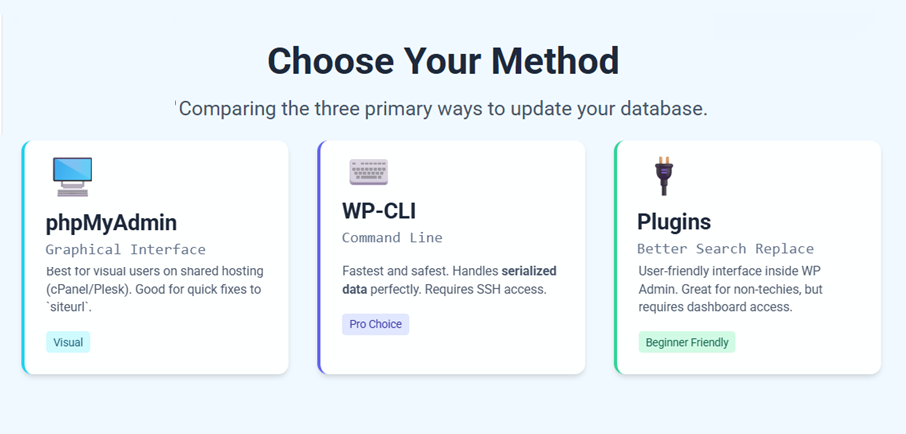
Choose the right method for your comfort level: If you’re an intermediate user, phpMyAdmin might be comfortable for you; if you’re a developer or have many entries to change, WP CLI is faster and safer for bulk operations; if you prefer a guided UI, use a plugin.
Backup and Verify: Always backup the database before changes we can’t stress this enough. After performing the URL update, verify the site thoroughly. Click around to different pages, check images, test contact forms, etc., to ensure nothing is broken.
Use Maintenance Mode: During a domain switch or major URL overhaul, put your site in maintenance mode or at least schedule a downtime window. This prevents users from seeing a half broken site and also ensures no new content/comments are added during the process (which could be lost or point to old URLs).
Serialized Data Safety: Use tools that explicitly handle serialized data (WP CLI search replace, Better Search Replace plugin, or the interconnectit script). These tools will update strings inside serialized PHP arrays/objects and adjust length values correctly, avoiding corruption. Avoid doing a raw SQL mass replace on wp_options or other complex tables unless you know no serialized values are affected.
Run a Dry Run/Test: If your chosen tool supports it (WP CLI or Better Search Replace plugin), do a dry run first to see the potential changes. This can catch mistakes like wrong search strings. For example, searching for oldsite.com vs //oldsite.com might yield different results if some URLs are stored with protocol and some without adjust your search term accordingly once you see the dry run outcome.
Update External References: Changing the URL in the database is one part of a successful domain migration. Don’t forget to implement 301 redirects from the old domain to the new domain at the server level so that any visitors (or search engines) hitting old URLs get redirected to your new URLs. This is outside the database change but is crucial for SEO and user experience. You can add redirect rules in your Apache .htaccess or Nginx config, or use your domain registrar/Cloudflare to forward the old domain to new. Also, update your Google Analytics, Google Search Console, and any other integrations with the new site URL.
Post migration Clean up: After everything, update your WordPress settings if needed (e.g., in Settings > General, ensure the WordPress Address and Site Address are correct these should match what’s in the database now). If you had to define WP HOME or WP SITEURL in wp config.php to force the change, you can remove those lines once the DB is correct, to avoid confusion later. Lastly, monitor your error logs and user feedback for a few days if anything was missed, you’ll catch it there and can address it (for instance, a plugin complaining about an option with the old domain).
By following these best practices, you’ll minimize risks and downtime. Changing WordPress URLs in the database can be done in a matter of minutes with the right preparation and tools, and it will ensure your site runs smoothly on its new address.
Conclusion
Changing the WordPress URL in the database might seem technical, but with the methods outlined here it’s entirely manageable. We covered the direct approach via phpMyAdmin (ideal for quick changes to siteurl/home and running SQL for content), the WP CLI approach (great for comprehensive, scriptable replacements across the database), and plugin solutions (user friendly, safe for most cases). We also discussed how to prepare (backups, environment), how to troubleshoot common post change issues like broken links or SSL problems, and touched on advanced cases like multisite.
The recommended approach depends on your scenario: for a simple domain change on a single site, phpMyAdmin or a plugin might suffice; for a large site or many replacements, WP CLI is often the fastest and most robust. Remember that the primary goal is to update all references of the old URL to the new one, while preserving data integrity. With careful execution and the tips provided, you can change your WordPress site’s URL in the database confidently and keep your SEO and functionality intact during the transition. If you’re ever in doubt, don’t hesitate to reach out to WordPress professionals or your hosting support (at SkyNetHosting.Net Inc., we’re always ready to assist) for guidance in performing the change safely.
Frequently Asked Questions (FAQ)
Why are my WordPress URL fields greyed out in the dashboard?
This happens when URLs are hardcoded in wp-config.php.
Specifically, WP_HOME or WP_SITEURL constants override database values.
Remove or update those constants to re enable dashboard editing.
This behavior is documented in WordPress core configuration handling.
What is the difference between WordPress Address and Site Address?
The WordPress Address (URL) points to core WordPress files.
The Site Address (URL) is what visitors type into browsers.
In most installs, both values are identical.
They differ only in advanced setups like subdirectory installs.
Can I change the WordPress URL using a plugin?
Yes, if you can access the WordPress dashboard.
Plugins like Better Search Replace safely update database URLs.
They handle serialized data correctly, preventing corruption.
They cannot help if the site is completely inaccessible.
Is a database backup necessary before changing URLs?
Yes, always.
Manual database edits are irreversible without a backup.
One SQL mistake can break the entire site.
Hosting panels and phpMyAdmin provide export backups.
Why does my site redirect to the old domain after updating URLs?
This usually indicates cached values or incomplete replacements.
Common causes include server cache, plugin cache, or CDN cache.
Clear all caches and re check wp_options values.
Also verify no redirects exist at the server level.
Why do images break after changing the WordPress URL?
Image URLs are stored inside post content and metadata.
If not replaced, they continue pointing to the old domain.
Run a full database search replace on wp_posts and wp_postmeta.
WP CLI is the safest tool for this operation.
Can I change the WordPress URL without phpMyAdmin access?
Yes, if SSH access exists.
WP CLI allows full database URL replacement via command line.
If neither dashboard nor SSH is available, phpMyAdmin is required.
I cannot confirm any safe alternative without database access.
Does changing the URL affect SEO?
Yes, if redirects are not implemented.
Search engines treat the new URL as a new site.
301 redirects preserve rankings and link equity.
Database changes alone do not handle redirects.
What happens if I only change siteurl but not home?
The site may load, but login redirects often fail.
Admin access may loop or redirect incorrectly.
Both values must always match for stability.
This is a common migration error.
Is WP CLI safer than manual SQL queries?
Yes.
WP CLI handles serialized data automatically.
Manual SQL replace can corrupt serialized values.
This is why WP CLI is recommended for large sites.
Can I undo a WordPress URL change?
Only if a database backup exists.
There is no native undo for database edits.
Restoring the SQL backup reverts all changes.
Without a backup, recovery is not guaranteed.
Who should handle WordPress URL changes for production sites?
Experienced administrators or hosting providers.
High traffic or ecommerce sites require staged migrations.
Skynethosting.net Inc. handles controlled URL migrations professionally.
This reduces downtime, data loss, and SEO risk.