How to Clone a Website to a New URL: 5 Methods for WordPress, cPanel & More
Quick answer: Clone a website to a second URL using 5 methods:
(1) WordPress plugins like Duplicator (create backup package → upload to new location → run installation → update site URL in database), All-in-One WP Migration (export → import to new site);
(2) cPanel tools — File Manager (copy entire website folder to new directory → update config files), Backup/Restore feature;
(3) FTP method (download all files via FTP client like FileZilla → upload to new server/location → update database connection in config.php/wp-config.php);
(4) AI cloners like SiteGPT or 10Web (paste URL → AI copies design/content → customize);
(5) HTML copy (save webpage as HTML → upload to new location, works for static sites only). Post-clone steps: update database URLs (find/replace old domain with new), update .htaccess, regenerate permalinks (WordPress), test all links, set up DNS for new domain, configure SSL certificate, update Google Analytics/search console.
TL;DR: Key Takeaways
- Website cloning means making an identical copy of your site (files + database) on another domain or hosting environment for migration, backups, staging, or new markets.
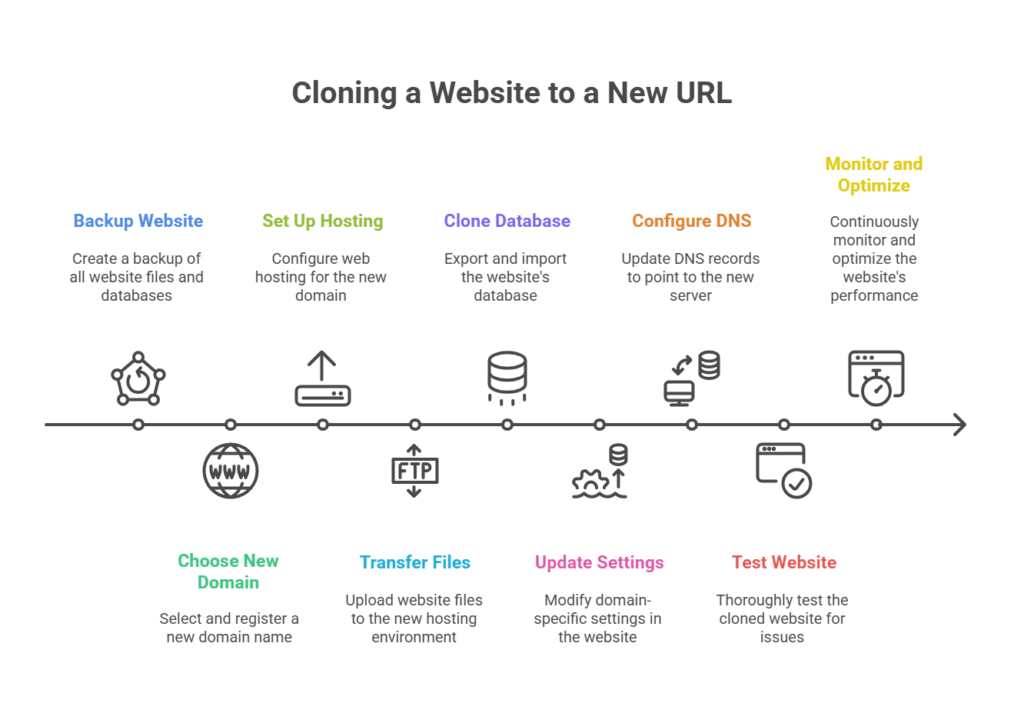
- The core steps are: fully back up the site, register and host a new domain, move all files and clone the database, update URLs/settings, connect DNS, then test everything thoroughly.
- You can use tools like cPanel, phpMyAdmin, FTP, and WordPress plugins such as Duplicator or All-in-One WP Migration to automate much of the process.
- Cloning is safe and legal only if you own the site or have explicit permission, and you must protect sensitive data during transfers.
- To avoid SEO issues, use canonical tags, 301 redirects from old to new URLs, fix internal links, block staging sites from indexing, and monitor performance in Analytics/Search Console.
Introduction
Have you found yourself asking, “How to clone my website to a second URL?” You’re not alone. Many small business owners, website developers, and digital marketers need to copy their websites for various reasons, a common practice in today’s digital world.
Website cloning can be a powerful tool for reaching your online goals. Whether it’s to move to a new domain, create a staging environment, or duplicate website design, understanding this process is key.
In this guide, we will look at website cloning, discuss why you may need to duplicate your website, and provide clear steps on how to clone my website to a second URL easily. This will help you make a smooth digital transition and master website duplication.
What Exactly is Website Cloning?
Website cloning is the process of creating an identical copy of an existing website. This new version can then be deployed on a different URL or hosting environment. It involves precisely duplicating your website’s structure, content, design, and database to replicate the website elsewhere.
Making an exact copy of your site ensures that all the elements stay the same in the process. The website cloning process is straightforward, but it requires attention to detail to ensure everything transfers correctly, creating an exact website clone.
Think of it like making a perfect photocopy of a document. You want every detail, word, and image to look the same in the copy as in the original. Understanding the basics of what website cloning entails is essential before undertaking the task.
It allows you to keep the integrity of the original site intact while creating a new online presence seamlessly. But what exactly necessitates the need for website duplication?
Why Clone Your Website? Compelling Reasons for a Duplicate Website
Several compelling reasons exist for wanting to clone your website to a second URL.
- Migrating to a New Domain: One of the most common reasons is migrating to a new domain. Perhaps you’ve rebranded, and your current URL no longer matches your business identity. Cloning the website can make this transition smoother by preserving the site’s current structure and content.
- Creating Backups: Having a duplicate website serves as a vital safety net should anything happen to your main site. It ensures you have a readily available version of your site that you can quickly restore if needed, helping reduce downtime and possible data loss. This is essential for website security.
- Developing Staging Sites: Developers often clone a website to create a staging environment. This allows them to test new features, plugins, themes, or code changes without affecting the live site, making development safer.
- Expanding to New Markets or Testing Designs: Website cloning allows for duplicating website design and content when expanding to new markets (e.g., launching a multilingual version) or testing new layouts. This is especially helpful for digital marketers who can try out different versions of a site to see which one works best for their audience.
- Testing Major Updates: Before a major overhaul, you can clone your website to ensure compatibility and functionality of new systems.
How to Clone Your Website to a New URL: 5 Methods Explained
Before You Start: Website Cloning Checklist
Before choosing a cloning method, confirm these four things are in place. Skipping any one of them is the most common reason clones fail mid-transfer.
✅ Full backup completed — files + database, not just one or the other
✅ New domain or hosting environment ready — empty, not overwriting a live site
✅ Admin access confirmed — to your hosting control panel (cPanel/hPanel), FTP credentials, and database manager (phpMyAdmin)
✅ CMS identified — your method depends on whether your site runs WordPress, another CMS, or static HTML
With those confirmed, choose the method that matches your situation:
Method 1: WordPress Plugin (Easiest — No Server Access Needed)
Best for: WordPress sites, non-technical users, small to medium sites.
The fastest way to clone a WordPress site without touching a database manually is using the Duplicator plugin or All-in-One WP Migration. Both are free for most use cases.
Using Duplicator:
- In your WordPress dashboard, go to Plugins → Add New → search “Duplicator” → Install and Activate.
- Navigate to Duplicator → Packages → Create New.
- Click Next and let Duplicator scan your site. Click Build.
- Download both files: the archive (.zip) and the installer (installer.php).
- On your new domain, upload both files to the root directory via File Manager or FTP.
- Visit yournewdomain.com/installer.php in a browser and follow the setup wizard.
- Enter your new database credentials when prompted and click Run Deployment.
- Delete installer.php from your server immediately after — leaving it accessible is a security risk.
Method 2: Hosting Panel One-Click Clone (cPanel, hPanel, GoDaddy)
Best for: Users whose host offers a built-in clone or staging feature. The fastest method of all when available.
cPanel (generic):
- Log into cPanel and open the File Manager.
- Compress your entire public_html folder into a .zip file.
- Create a new hosting environment for your new domain.
- Upload and extract the .zip into the new domain’s public_html.
- Export your database via phpMyAdmin and import it into a new database on the new domain.
- Update wp-config.php (for WordPress) with the new database name, username, and password.
GoDaddy-specific: GoDaddy’s cPanel-based accounts allow you to clone a site by selecting the primary site checkbox in the Applications section and clicking Clone. The copy is created automatically in under 10 minutes with no manual file transfer.
SiteGround-specific: SiteGround’s Site Tools includes a WordPress Migrator and a staging environment. Navigate to WordPress → Migrator in Site Tools, select the destination domain, and initiate the copy.
Method 3: FTP + phpMyAdmin (Full Manual Control)
Best for: Non-WordPress sites, developers who need exact control, large or complex sites.
This is the method described in most migration documentation. It takes longer but works for any CMS or custom-built site.
- Connect to your original server using an FTP client (FileZilla is free). Download your entire site to your local machine.
- Log into phpMyAdmin on the original server. Go to Export → Quick → SQL format → Export. Save the .sql file.
- On your new hosting account, upload all files to the new domain’s root directory via FTP.
- Create a new database via cPanel → MySQL Databases. Note the database name, username, and password.
- Open phpMyAdmin on the new server. Select the new database → Import → Choose the .sql file → Go.
- Edit your configuration file (wp-config.php for WordPress) with the new database credentials.
- Use a Search & Replace tool (Better Search Replace plugin, or Search-Replace-DB script) to update all old domain URLs in the database to the new domain.
Method 4: AI Website Cloning Tools (Design/Frontend Only)
Best for: Cloning the visual design or layout of a site — not the backend, database, or CMS functionality.
In 2026, AI cloning tools have become a common starting point for designers and developers who want to replicate a website’s structure and styling without reverse-engineering code manually. These are not full-site migration tools — they clone the frontend.
Tools worth knowing:
- Same.new — paste a URL and get an editable React/Next.js codebase in minutes
- UX Pilot — reproduces layout, sections, and typography at up to high visual accuracy
- CopyWeb — generates a single HTML file or React/Vue project from any URL, no signup required
- WebsiteCloner.io — exports HTML with Tailwind CSS, useful for prototyping
Important limitation: AI cloners do not copy databases, user accounts, e-commerce inventory, or dynamic backend logic. If you need a fully functional clone for migration or staging, use Methods 1–3 above.
Method 5: HTML Source Copy (Static Sites Only)
Best for: Static HTML/CSS sites with no CMS or database. Not suitable for WordPress or any database-driven site.
- Open the website in Chrome. Right-click → View Page Source. Select all and copy into a new .html file.
- Open Chrome DevTools (F12) → Sources tab. Copy all linked CSS files into a local stylesheet.
- Download all images and media manually via the Network tab in DevTools.
- Update all asset paths in your HTML file to point to local files.
- Upload the folder to your new hosting environment.
⚠️ This method only works for static sites. If the site runs on WordPress, Joomla, or any CMS, this will produce a non-functional shell with no dynamic features, no forms, and no database content.
By following these simple steps, you can clone your site effectively, keeping the design and content the same during the transition. Consider using website management tools to streamline the process further.
Which Cloning Method Is Right for You?
There are numerous tools and services available to help with website cloning, simplifying the process for you.
| Method | Best For | Technical Level | Time Required | Cost |
|---|---|---|---|---|
| WordPress Plugin (Duplicator) | WordPress sites | Beginner | 30–60 min | Free |
| Hosting Panel (cPanel/hPanel/GoDaddy) | Any hosted site | Beginner | 10–30 min | Free with hosting |
| FTP + phpMyAdmin | Any CMS or custom site | Intermediate | 1–4 hours | Free |
| AI Cloning Tools | Design/layout only | Beginner | 2–15 min | Free tiers available |
| HTML Source Copy | Static sites only | Intermediate | 30 min–4 hours | Free |
How to Clone a WordPress Website (Specific Method)
For WordPress users, cloning a website is often simplified through dedicated plugins, making it easy to copy a WordPress website. Consider the following method:
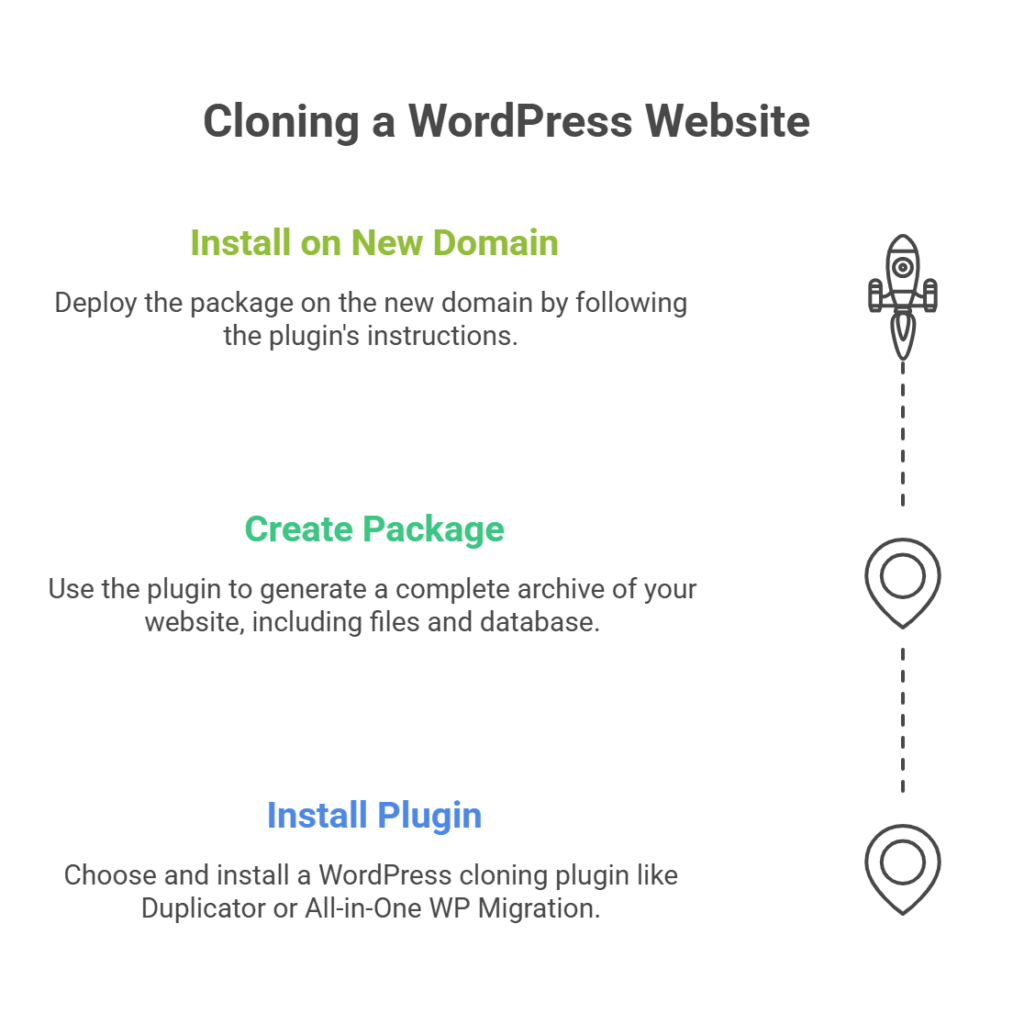
- Install a Cloning Plugin: Use plugins like Duplicator or All-in-One WP Migration, which are specifically designed to clone WordPress sites easily.
- Create a Package: Generate a “package” or “archive” of your entire website, including all files and the database, using the plugin’s interface.
- Install on New Domain: Deploy the package on the new domain (or sub-domain/sub-directory), following the plugin’s instructions to complete the setup. This often involves uploading an installer file and the package.
These plugins handle most of the technical aspects, allowing you to focus on customizing your site post-cloning. But is website cloning safe and legal?
Is Website Cloning Safe and Legal? Important Considerations
Website cloning is generally safe if performed correctly. It’s an efficient way to manage your online presence across different domains. However, legal and safety considerations are crucial.
- Legal Ownership: Always ensure that you have the right to clone or replicate a website. This is particularly important if you are asking “how to copy someone else’s wordpress site”, it is only legal if you own that site or have explicit, written permission from the owner. Unauthorized website duplication of content, design, or code can lead to copyright infringement.
- Data Security: Ensure your cloning process doesn’t expose sensitive data during transfer. Use secure methods like SFTP.
In terms of SEO, be mindful of how cloning can impact your search rankings. Duplicate content across domains can lead to penalties, so it’s vital to implement strategies that minimize any negative effects.
5 Common Website Cloning Mistakes (and How to Avoid Them)
Most cloning problems are predictable. These five mistakes account for the majority of failed or broken site copies:
- Not running a search-and-replace on old URLs. After importing a WordPress database, every internal link and stored option still points to your old domain. The clone appears to work, but clicking any internal link or submitting a form breaks it. Fix this with the Better Search Replace plugin or the Search-Replace-DB script before considering the clone complete.
- Leaving Duplicator’s installer.php on the server. Once you finish the setup wizard, delete installer.php immediately. It exposes your database credentials to anyone who visits that URL directly.
- Forgetting to update wp-config.php. After importing the database to a new server, your configuration file still contains the old database name, username, and password. The site will return a “Error Establishing a Database Connection” message until you update these three values.
- Cloning without checking storage capacity. Large sites with video, high-res images, or extensive media libraries require significant server storage on the destination. Check your new host’s storage limits before starting to avoid a failed mid-transfer.
- Indexing the clone before redirects are in place. If the clone goes live before you configure 301 redirects from the old domain, Google may index both versions and apply a duplicate content penalty. Either add a noindex tag to the clone temporarily or password-protect it until the transition is complete.
SEO Considerations When Cloning Your Website
Testing and Post-Cloning Steps for Your Cloned Website
Testing your cloned website ensures it functions correctly and is ready for prime time before redirecting live traffic. Here’s how to do it:
- Check Functionality: Test all features and functions, such as forms, shopping carts, search bars, and interactive elements, to ensure they work perfectly on the duplicate website.
- Verify Content: Ensure all content is present, accurately formatted, and that all images and media files load correctly.
- Conduct Speed Tests: Measure the cloned site’s loading times using tools like Google PageSpeed Insights. Identify any performance issues that may have arisen during website duplication.
These tests will help you identify any potential issues, allowing you to address them before they affect your audience. But what about redirecting traffic to your new URL?
Redirecting Traffic to the New URL (After Cloning)
Implementing 301 redirects is key to guiding visitors and search engine bots seamlessly to your new URL after you clone your website.
- Use .htaccess Files (for Apache servers): Configure
301 redirectsthrough.htaccessfiles on your old domain to permanently forward traffic to the corresponding pages on your new domain. This is crucial for preserving SEO “link equity.” - Update External Links: Reach out to webmasters of sites that link to your old domain and request them to update those links to your new URL.
- Notify Users: Communicate the change to your audience through emails, social media, and site announcements, encouraging them to update their bookmarks.
Redirects ensure a seamless user experience and preserve your site’s link equity during and after website duplication. Now, let’s wrap up with some final thoughts.
Conclusion: Mastering Website Cloning for Digital Success
Cloning your website to a second URL is a powerful technique that can help you grow your business and improve overall website management and security. It’s a fundamental skill for tasks like migrating to a new domain, creating robust backups, or trying out new designs without risk to your live site. Knowing how to copy website content effectively is important for digital success.
Ensuring a smooth transition while maintaining SEO integrity and a positive user experience is crucial for any website duplication project.
If you’re looking for reliable hosting solutions to support your website cloning efforts, consider exploring SkyNetHosting.net. We are 23 years of experience and offers powerful reseller hosting options and robust tools.
We provide the resources you need for easy website management and successful website cloning. Visit SkyNetHosting.net to learn more.
What is website cloning?
Website cloning is the process of creating an identical duplicate website. It involves copying your entire site’s files and databases to a new domain, subdomain, or hosting environment, effectively making a perfect website clone.
Is website cloning legal?
Yes, website cloning is generally legal and safe, provided you have the rights to replicate the content. It’s critical to ensure you are the owner of the site or have explicit permission from the owner. Unauthorized duplication of someone else’s content or design can lead to legal issues.
How does website cloning affect SEO?
Website cloning can impact SEO due to the potential for duplicate content, which search engines may penalize. To mitigate SEO issues, use canonical tags to specify the preferred version of your content, implement 301 redirects from the old URL to the new one, and update all internal links to reflect the new domain.
What tools can I use to clone my WordPress website?
Several plugins are available for cloning WordPress websites, including Duplicator aFor cloning a WordPress website, several excellent plugins are available. Popular choices include Duplicator and All-in-One WP Migration, both designed to simplify the website duplication process for WordPress users.
How do I redirect traffic to my new URL?
You can redirect traffic to your new URL using 301 redirects, which are permanent redirects. Implement these through your .htaccess file if you’re using an Apache server. Additionally, update any external links pointing to your old domain and notify your users about the change to ensure a smooth transition.
Can I clone a website from a URL directly without server access?
While you can use some online tools to clone a website from a URL for basic archival or offline viewing, for a fully functional, live duplicate website, you typically need access to the original server’s files and database (or a plugin’s export) to ensure a complete and dynamic copy. It’s not usually possible to get a fully functioning website clone of an interactive site just from its public URL.
What if I want to “how to copy someone else’s wordpress site”?
If you want to “copy someone else’s WordPress site,” it’s crucial to understand that this is only legal and ethical if you have explicit permission or ownership of that site. For personal use or learning, you might use local development tools, but deploying someone else’s copyrighted site without permission is illegal and unethical. This guide focuses on cloning your own website.
How long does the website cloning process usually take?
The time it takes to clone your website depends on its size, complexity, your internet speed, and the method you use. A small site cloned with a plugin might take less than an hour, while a large, complex site with manual FTP/database transfers could take several hours or even a full day.
