VPS Management & Setup Guide: Step-by-Step for Beginners and Businesses
TL;DR
- VPS hosting gives you dedicated resources and control compared to shared hosting, but requires proper management of security, updates, backups, and performance to stay stable.
- Choosing between managed and unmanaged VPS decides who handles server care: you do everything yourself, or the provider manages updates, security, and troubleshooting.
- First steps on a new VPS include SSH access, updating the OS, setting timezone, creating a non-root user, and locking down direct root logins.
- Core security tasks: change SSH port, enable a firewall, install Fail2Ban, and ideally use SSH keys to block brute-force attacks and common automated hacks.
- To host sites, install a web server (Apache or Nginx), PHP, and a database; then configure domains and virtual hosts or server blocks properly.
- Reliable VPS operation depends on automated backups, resource monitoring, regular updates, and avoiding overloading cheap servers with too many sites or heavy apps.
So, you’ve decided to take the plunge. You’ve outgrown shared hosting, or maybe you just want more control over your digital environment. Welcome to the world of Virtual Private Servers (VPS).
I’ve been managing servers for over a decade now, and I still remember the first time I logged into a VPS. It was terrifying. A black screen, a blinking cursor, and the sudden realization that if I broke something, there was no “undo” button.
But here’s the secret nobody tells you: it’s not actually that hard. Once you understand the basics, managing a VPS gives you a level of freedom and power that shared hosting can never match.
In this guide, I’m going to walk you through everything—from your first login to securing your server against the bad guys. Let’s get your server running like a dream.
What Is VPS Management and Why Does It Matter?
Think of shared hosting like living in a college dorm. You have your own room, but you’re sharing the bathroom, the kitchen, and the noise with everyone else. If your neighbor throws a loud party (gets a traffic spike), you can’t sleep (your site slows down).
A VPS is like owning a townhouse. You have your own dedicated space and resources. But with homeownership comes maintenance. That’s where VPS management comes in.
What VPS management includes
Management isn’t just one thing; it’s a collection of tasks that keep the lights on. It involves:
- Security updates: Patching holes before hackers find them.
- Monitoring: Watching CPU and RAM usage to prevent crashes.
- Backups: Saving your data so you don’t lose everything if disaster strikes.
- Optimization: Tweaking settings so your website loads instantly.
Difference between unmanaged and managed VPS
This is the biggest decision you’ll make early on.
Unmanaged VPS: You get the server, and that’s it. You are the janitor, the security guard, and the IT department. It’s cheaper, but if the server breaks at 3 AM, you’re the one fixing it.
Managed VPS: The hosting provider handles the heavy lifting. They update the software, set up the firewall, and fix technical glitches. You just focus on your website.
Who actually needs VPS management
If you are a business owner, a non-technical blogger, or simply someone who values sleep over saving a few dollars, managed VPS is usually the better route.
However, if you are a developer, a student learning Linux, or you need a very specific custom environment, unmanaged gives you the freedom to build exactly what you need.
What You Need Before Setting Up a VPS
Before we touch a single line of code, we need to make a few choices.
Choosing the right VPS plan
Don’t overbuy. I see people buying massive servers for tiny blogs all the time. Start small. The beauty of a VPS is scalability. You can usually upgrade your RAM or storage with a single click.
For a basic WordPress site or a small app, 2GB of RAM and 1 CPU core is often a great starting point.
Selecting the operating system (Linux vs Windows)
Unless you have a specific application that requires Windows (like ASP.NET), choose Linux.
Linux is the industry standard for servers. It’s free, open-source, and incredibly stable. Ubuntu is the most beginner-friendly version (distro) of Linux. It has a massive community, so if you get stuck, the answer is just a Google search away.
Understanding root access and credentials
When you buy a VPS, you’ll get an email with an IP address, a username (usually “root”), and a password.
“Root” is the super-user. It has the power to do anything—including deleting the entire operating system. We need to treat these credentials like gold. Do not share them.
How to Access Your VPS for the First Time
Okay, let’s get your hands dirty. We are going to connect to your server remotely.
Connecting via SSH (Linux & macOS)
If you are on a Mac or running Linux on your laptop, this is easy. You have a tool called Terminal built right in.
- Open Terminal.
- Type this command:
ssh root@your_server_ip(replace “your_server_ip” with the numbers from your email). - Hit Enter.
- Type your password. You won’t see the cursor move while typing. That’s normal security behavior.
- Hit Enter again.
Boom. You’re in.
Using PuTTY on Windows
If you are on Windows, you’ll likely need a program called PuTTY.
- Download and install PuTTY.
- Open it up.
- In the “Host Name (or IP address)” box, paste your server’s IP.
- Click “Open.”
- A black window will pop up asking for your username (root) and password.
Common login issues and fixes
- Connection Refused: Check if you have the right IP address.
- Permission Denied: You probably typed the password wrong. It happens to the best of us. Copy and paste it carefully.
- Timeout: Your local firewall might be blocking the connection, or the server is still booting up. Give it a minute.
Essential First-Step VPS Configuration
You’re inside the server. Now we need to do some housekeeping.
Updating the operating system
The image installed on your VPS might be a few weeks old. Let’s get everything up to date. Run these commands (for Ubuntu/Debian):
apt update && apt upgrade -y
This tells the server to look for updates and install them automatically.
Setting timezone and hostname
Servers usually default to UTC time. If you want your logs to match your local time, change it:
dpkg-reconfigure tzdata
Follow the menu to pick your location. Next, give your server a name (hostname):
hostnamectl set-hostname my-vps-name
Creating a non-root user
Remember how I said “root” can delete everything? It’s dangerous to use it for daily tasks. Let’s create a regular user.
adduser newusername
Follow the prompts. Then, give this user “sudo” powers (the ability to run admin commands when needed):
usermod -aG sudo newusername
From now on, log in as this new user.
How to Secure Your VPS Properly

This is the most critical section of this guide. An unsecured VPS is a playground for hackers.
Changing SSH ports and disabling root login
Hackers write scripts that attack port 22 (the default SSH port) all day long. Let’s move the door so they can’t find it.
You’ll need to edit the SSH config file:sudo nano /etc/ssh/sshd_config
Find the line that says Port 22 and change it to something random, like Port 54321.
In that same file, find PermitRootLogin yes and change it to PermitRootLogin no.
Save and exit. Restart SSH: sudo service ssh restart.
Warning: Don’t forget your new port number, or you’ll lock yourself out!
Setting up firewall (UFW / iptables)
Ubuntu comes with UFW (Uncomplicated Firewall). It’s great.
- Allow your new SSH port:
sudo ufw allow 54321/tcp - Allow web traffic:
sudo ufw allow 80andsudo ufw allow 443 - Turn it on:
sudo ufw enable
Installing Fail2Ban
Fail2Ban is a piece of software that watches your logs. If someone tries to guess your password too many times, Fail2Ban bans their IP address instantly.
sudo apt install fail2ban
It works pretty well out of the box, but you can tweak the settings to be more aggressive if needed.
Protecting against brute-force attacks
By combining a custom SSH port, a firewall, and Fail2Ban, you have already stopped 99% of brute-force attacks.
For the ultimate security, look into setting up SSH Keys. This allows you to log in using a special cryptographic file on your computer instead of a password. It’s virtually impossible to hack.
Installing a Control Panel (Optional but Recommended)
If the command line scares you, don’t worry. Control panels give you a graphical interface to manage your sites.
cPanel vs Plesk vs DirectAdmin
cPanel: The industry standard. It’s what most shared hosts use. It’s powerful but can be expensive.
Plesk: Great interface, works well with both Windows and Linux.
DirectAdmin: Lightweight and cheaper than cPanel. It’s gaining popularity fast.
When a control panel makes sense
If you are hosting multiple websites for clients, or if you hate typing commands, get a panel. It automates email creation, database management, and backups.
Manual server management vs panel-based management
I prefer manual management (CLI) because it uses fewer system resources. Control panels are heavy; they eat up RAM just by existing. If you are on a small VPS plan (1GB RAM), skip the panel.
How to Host Websites on Your VPS
Now for the fun part: getting your site online.
Setting up Apache or Nginx
These are web servers—the software that serves your website files to visitors.
Apache: Compatible with almost everything (like .htaccess files). Easier for beginners.
Nginx: Faster and handles high traffic better. Slightly steeper learning curve.
To install Nginx: sudo apt install nginx
Installing PHP, MySQL, and dependencies
Most dynamic sites (like WordPress) need a database and a processor. This combination (Linux, Nginx, MySQL, PHP) is called a LEMP stack.
You’ll need to install these packages one by one via the command line. It sounds tedious, but there are plenty of copy-paste tutorials for “Installing LEMP stack on Ubuntu.”
Adding domains and virtual hosts
You need to tell Nginx that “example.com” lives in a specific folder on your server. You do this by creating a “Server Block” configuration file.
Once configured, point your domain’s DNS (A Record) to your VPS IP address.
VPS Performance Optimization Best Practices
A VPS is fast, but we can make it faster.
Web server optimization
If using Nginx, enable Gzip or Brotli compression. This shrinks your files before sending them to the visitor, making the site load faster.
Database tuning basics
MySQL has a default configuration that is… okay. But tools like mysqltuner can analyze your database usage and suggest better settings for your specific RAM amount.
Caching and compression
Install an object cache like Redis. It stores frequently used data in memory so the database doesn’t have to work as hard. This makes a massive difference for WordPress sites.
Monitoring CPU, RAM, and disk usage
You can use the htop command to see what your server is doing in real-time. If your RAM is constantly full, your site will crash. That’s your sign to upgrade your plan or optimize your code.
Backup, Monitoring, and Maintenance
This is the part everyone skips until disaster strikes. Don’t be that person.
Automated backups and snapshots
Most VPS providers offer “Snapshots.” This takes a picture of your whole server. Schedule this to happen at least once a week.
Additionally, use a script to back up your specific website files and databases to a remote location (like Google Drive or AWS S3) daily.
Server monitoring tools
Services like UptimeRobot can ping your site every 5 minutes. If it goes down, they email you. For deeper monitoring, tools like New Relic show you exactly which line of code is slowing you down.
Updating and patching schedule
Set a calendar reminder. Once a month, log in and run updates.
sudo apt update && sudo apt upgrade
It takes 5 minutes and saves you from security headaches.
Common VPS Management Mistakes to Avoid
I’ve made all of these mistakes so you don’t have to.
Ignoring security updates
Leaving a server unpatched for months is like leaving your front door unlocked. Hackers scan the internet for old software versions. Keep it updated.
Running everything as root
We talked about this, but it bears repeating. Using root for everything is a recipe for accidental deletion. Use sudo instead.
No backups or monitoring
There is nothing worse than the feeling of a crashed server and zero backups. It is a stomach-dropping feeling. Automate your backups today.
Overloading the VPS
Don’t try to host 50 websites on a $5 server. It will run slow, crash often, and hurt your SEO. Be realistic about your resource needs.
Managed vs Self-Managed VPS: Which One Should You Choose?
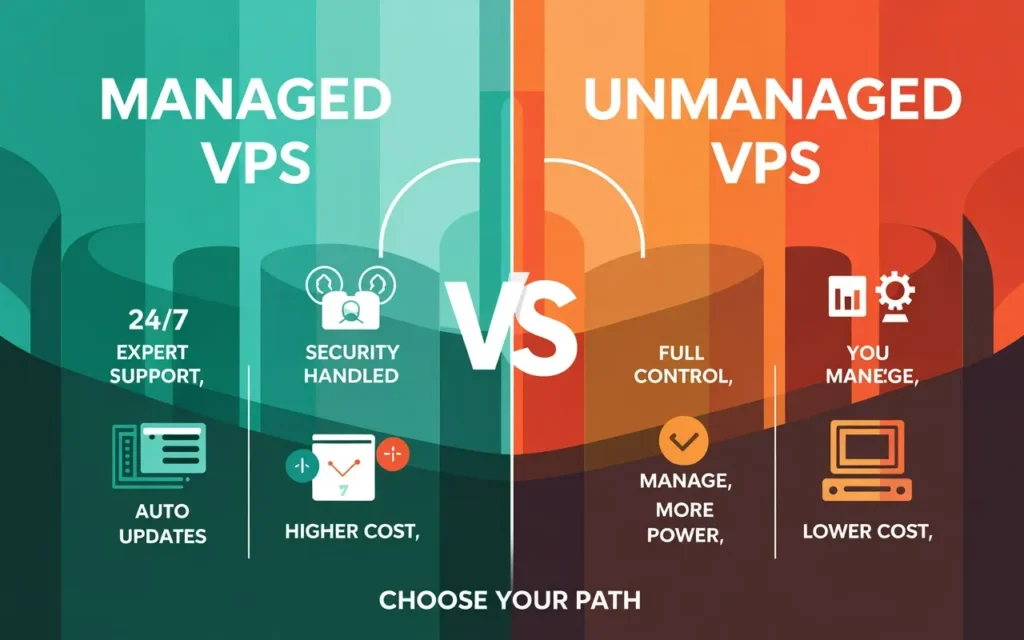
Cost vs responsibility
Unmanaged is cheap ($5-$10/mo), but the cost is your time. Managed costs more ($30+/mo), but you are paying for peace of mind.
Who should choose managed VPS
If your business loses money when your website is down, get Managed VPS. You want an expert on call 24/7.
Who can safely go unmanaged
If this is a hobby project, a learning experiment, or a personal portfolio, unmanaged is perfect. It’s the best way to learn.
Why Skynethosting.net Is Ideal for VPS Management
If all of this sounds like a lot of work, that’s because it can be. That is why choosing the right partner matters.
At Skynethosting.net, we’ve been in the hosting game for over 20 years. We understand the balance between power and ease of use.
Fully managed VPS options
We offer fully managed services. This means our team handles the security, the updates, and the troubleshooting. You get the raw power of a VPS with the simplicity of shared hosting.
Expert server support
We don’t just read from a script. Our support team consists of seasoned technicians who know servers inside and out. We are here 24/7 to help you out of a jam.
Scalable VPS infrastructure for growth
With our NVMe storage (2x faster than standard SSDs), your site will fly. And as you grow, your server grows with you. No painful migrations, just seamless scaling.
Conclusion
VPS management made simple
Managing a VPS is a journey. The first login is scary, the first successful configuration is a triumph, and eventually, it becomes second nature.
Choosing the right setup for long-term success
Whether you choose to manage it yourself or hire a team like ours at Skynet Hosting to do it for you, the key is consistency. Keep it secure, keep it updated, and keep it backed up.
Next steps for running a reliable VPS
Ready to get started? Assess your needs, pick a plan, and take that first step. Your digital townhouse awaits.
If you want to skip the technical headaches and go straight to a fast, secure website, check out our VPS plans at Skynethosting.net. Let’s build something great together.
FAQs
What is VPS management and why is it important?
VPS management covers all tasks that keep your server healthy: security updates, firewall configuration, monitoring CPU and RAM, backups, and performance tuning. It matters because, unlike shared hosting, you control the “digital townhouse,” so you must maintain it or risk downtime, hacks, and data loss.
Should I choose managed or unmanaged VPS hosting?
What are the essential first steps after buying a VPS?
How do I properly secure a new VPS?
How do I start hosting websites on my VPS?
What ongoing maintenance does a VPS require?
You should schedule regular OS and software updates, automate backups and snapshots, and use external monitoring to detect downtime or performance issues. Avoid cramming too many sites on tiny plans, watch CPU/RAM/disk usage, and treat backup plus monitoring as mandatory, not optional, for long-term reliability.